CS155 Computer Graphics
Lab 0


This is a warm-up lab to introduce you to the graphics machines and some of the tools you'll use during the semester.
  1. The images you create in this class should be available on the web so you need to start a web page. 


  2. You will probably need a lot more space on Turing for the work you'll do in this class. Add your name and Turing login to the request form for a quota increase as described during lab.


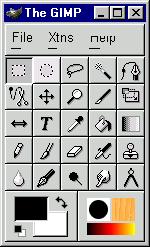
  3. In this problem you'll explore common methods for representing color. From a terminal window launch gimp.  (Type gimp at the command line prompt.  Gimp is a freeware image processing system.)  A tool panel as shown below should appear.

    In the lower left corner of tool panel are two overlapping rectangles (shown in black and white in the sample above).  Click on them and a color selector window will appear as shown below.
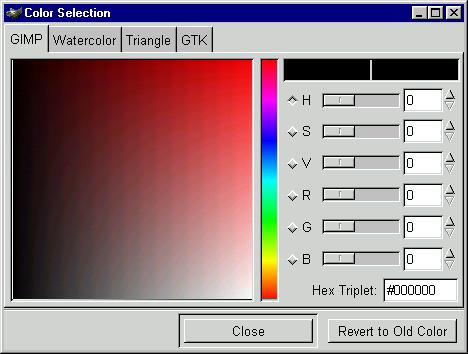
    There are six sliders on the right-hand side of the color selector window. The bottom three are labeled red, green, and blue. Moving these sliders will change the color displayed in the rectangles at the top right of the tool panel.

    Move the red, green, and blue sliders to create the colors shown below. Record the RGB values next to the images.




  4. The top three sliders on the gimp color selector control the hue (H), saturation (S), and value (V) of the color.  Use the HSV sliders to try to recreate colors shown above. Record the HSV values next to the images. (Return this form to me when you are done with the lab.)


  5. Gimp is useful for taking screenshots. From the File tab, choose Acquire, and then Screen Shot. Then follow the directions. Take a screen shot of this web page. Right-click on the screen shot and choose File,
    then Save As .... A Save Image window will appear. In the Save Options click on the "By Extension" tab. Gimp offers a wide variety of file formats. This is convenient when you want to change file formats. Save your screen shot as a jpeg file and link it to your lab0 web page.


  6. In this exercise you will explore the image processing capabilities of gimp.Find three images on the web, load each into gimp, and try out the various gimp filters. Your task is to create three cool images that look drastically different than the originals. Put the original and final images in a "lab 0" web page and link it off of your your cs155 web page. Have fun!