Getting started
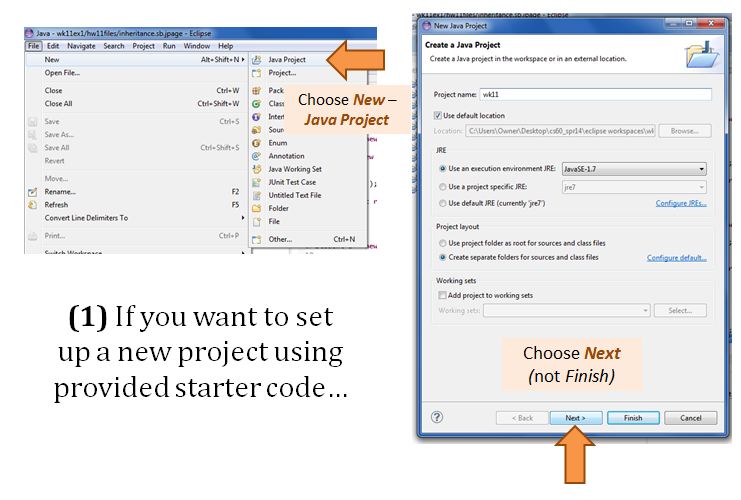
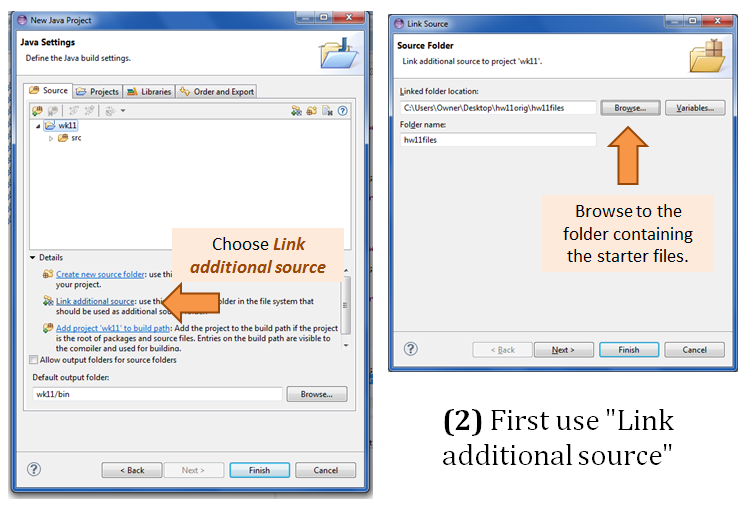
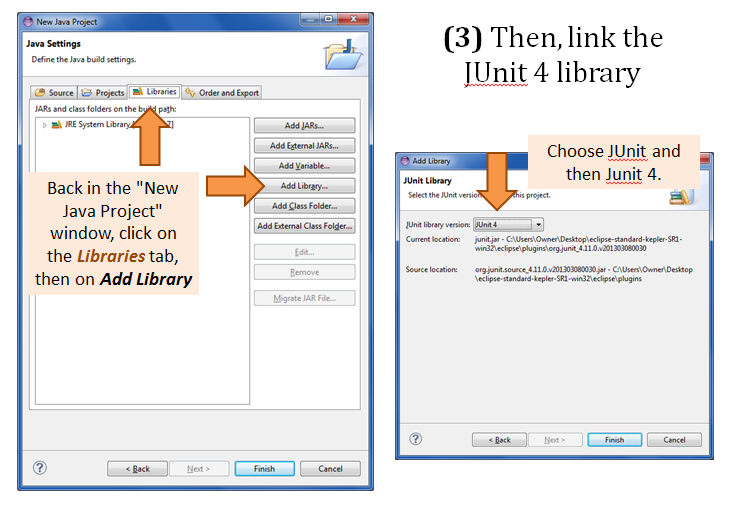
If you'd like to start a new Java project using a folder of
starter files, these are the steps to take.
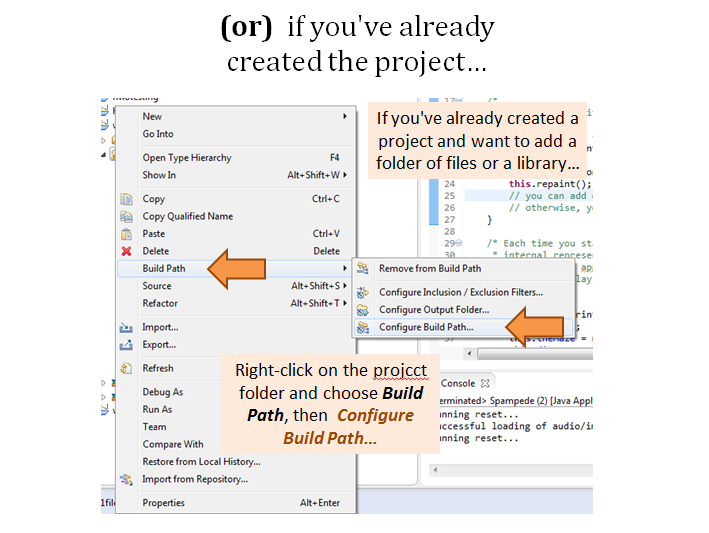
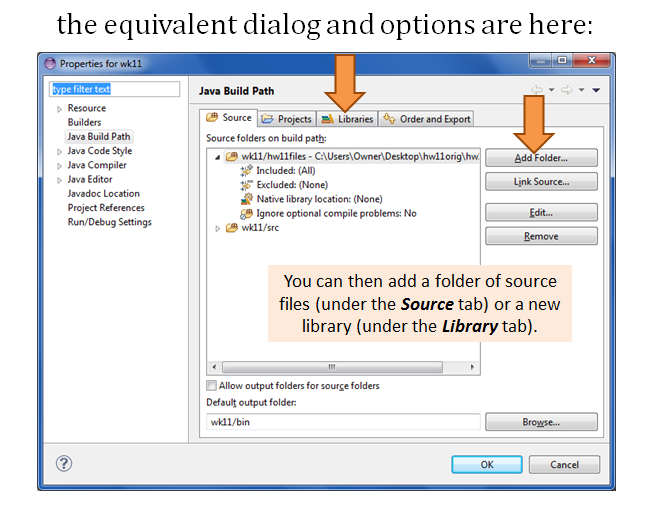
If you'd like to add a library or a folder of files to an existing
project, see below; at the very bottom are instructions for adding
a JUnit test if you already have a project. (From there, you
can paste in tests, if some are provided.)
Adding a JUnit test to an existing project with class files
If your project already has class files and you'd like to add
test files
- choose File - New JUnit Test
- delete any text in the Package: textfield - we tend to use the default package
- Under Name:, give it the name of your file, e.g.,
ListTest
- At the bottom, in Class under test:, type the name of
the class being tested, e.g., List
Then, click Finish. From there, you should be able to paste the existing
test file over top of the starter file created by Eclipse.