Claude via Google Cloud, LiteLLM, and Open WebUI
A start-from-zero, copy-and-paste setup guide built from a real working session. It includes the exact failure modes encountered along the way, and it verifies each layer before moving to the next.
· Scope: local macOS proof-of-concept.
Scope
This guide is deliberately optimised for a local macOS proof-of-concept using Docker Desktop and Google Cloud Application Default Credentials (ADC). It is not a production deployment guide. A shared service should use a workload identity or service-account pattern rather than depending on one person's local ADC file.
1 What You Are Building
Four pieces, in a straight line. Each one only has to satisfy the piece to its right.
| Component | What it does |
|---|---|
| Open WebUI | The browser-based chat interface. |
| LiteLLM | An OpenAI-compatible gateway. Open WebUI talks to LiteLLM, and LiteLLM translates the request for Google's Claude endpoint. |
| Google Agent Platform | Hosts the managed Anthropic Claude models and handles billing, access, and inference. |
| ADC | Application Default Credentials. In the tested session, mounting the local ADC file into LiteLLM was the change that made Claude requests succeed. |
Definition of done
You can choose claude-opus-5 in Open WebUI, send a message, and receive a response. You will also have a direct curl test proving LiteLLM works independently of Open WebUI.
2 Before You Begin
This guide assumes:
- You have a Google account that can use a Google Cloud project.
- Billing is enabled for the project, or your organisation provides billing.
- Your organisation permits the relevant Claude partner models.
- You are using macOS with Docker Desktop.
- You can use Terminal and paste commands.
Do not copy example IDs literally
Anywhere you see <PROJECT_ID>, replace it with your own Google Cloud project ID. A real mistake in the source session came from copying someone else's example project ID, which produced an IAM permission error that looked far more mysterious than it was.
3 Choose the Google Cloud Project
-
Open the Google Cloud Console and select the project you intend to use. Write down its Project ID, not merely its display name — they are often different, and only the ID works in commands.
-
Open Billing for that project and confirm it is linked to an active billing account. In an institution-managed Google Cloud organisation, an administrator may have to do this for you.
-
Note that the Agent Platform API needs to be enabled. Section 5 verifies this from the CLI; the Agent Platform interface can also enable it for you.
4 Enable Claude and Prove Google Can Use It
Do this before troubleshooting Docker or LiteLLM. If Claude does not work in Google's own Agent Studio, it will not work through LiteLLM, and every hour spent on container networking will be wasted.
-
Open Agent Platform / Model Garden and find the Claude model you want. This guide uses
claude-opus-5. Google's partner-model documentation lists the supported model IDs. -
Let the Enable APIs dialog finish if the interface opens one. Seeing a model name listed does not mean its supporting APIs are ready.
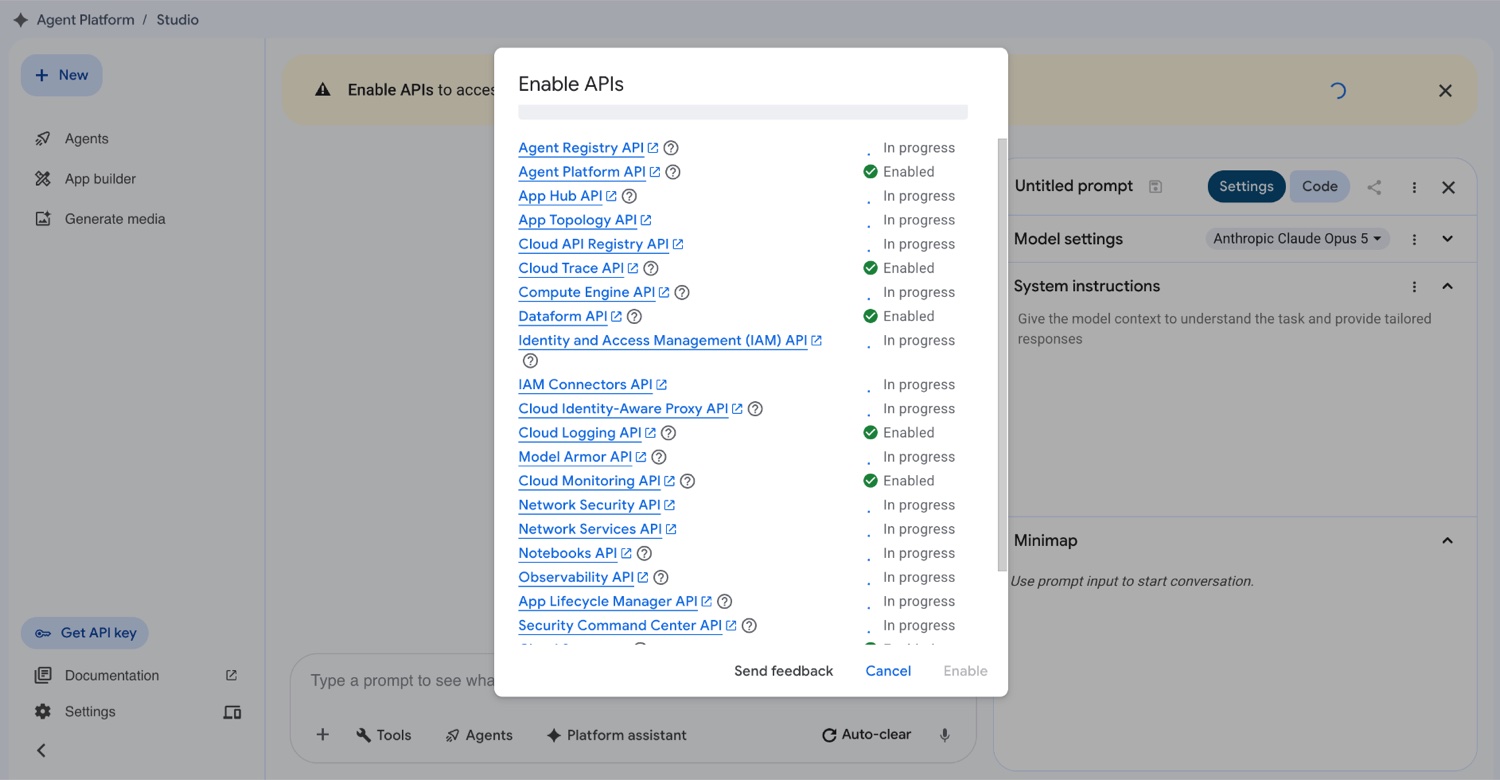
Google Cloud enabling the APIs that Agent Platform depends on. Wait for this to settle before testing anything. -
Open the model in Agent Studio and confirm the model selector shows it.
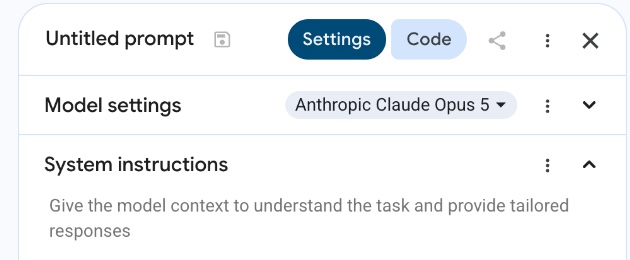
The model selector lives in the prompt settings panel on the right. -
Send a test message. A response here is strong evidence that the project and your user identity can reach the model.
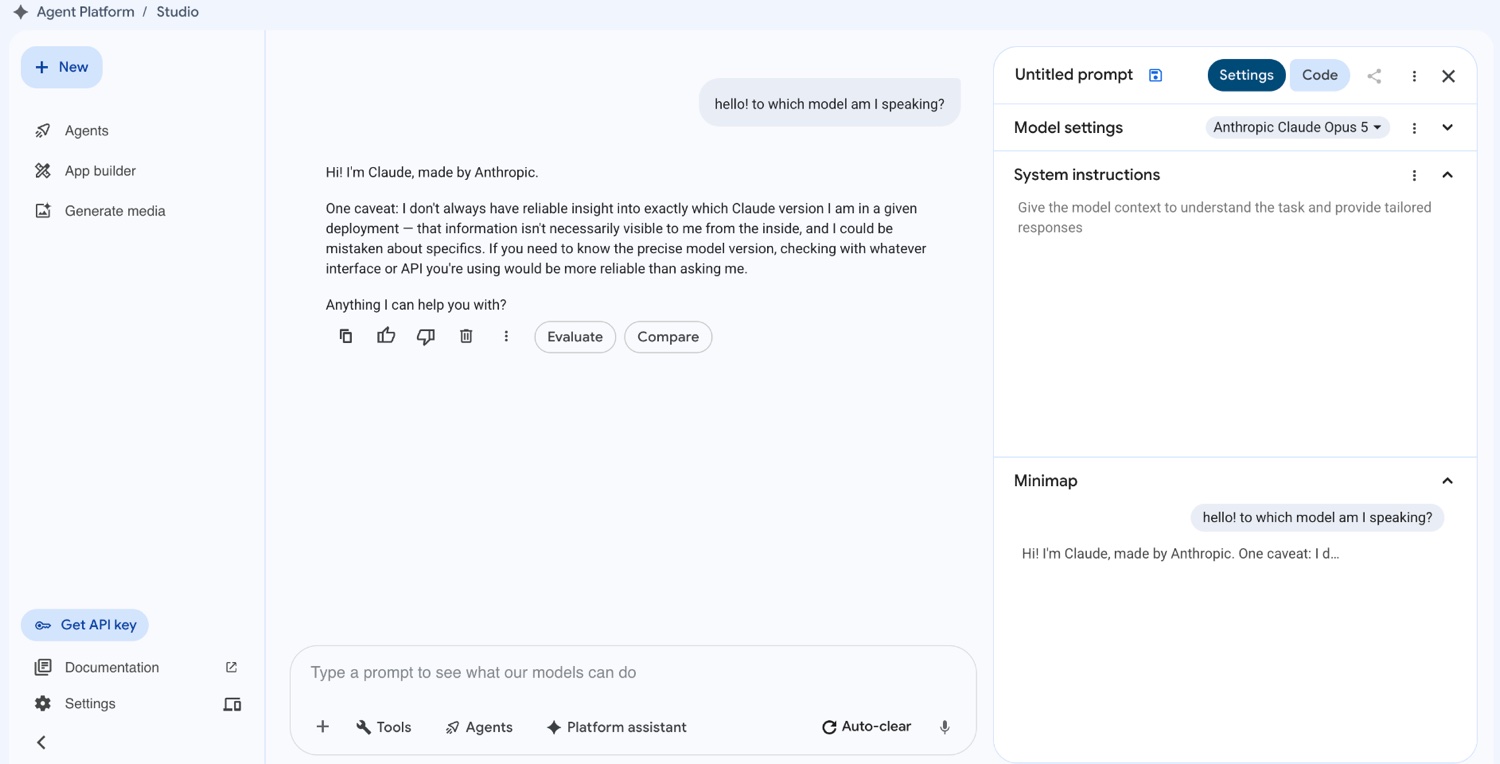
A successful Google-side test. This became an important diagnostic later: the model worked for the interactive user identity while a service account failed.
5 Install and Authenticate the gcloud CLI
-
Check whether
gcloudis already installed; if it is, skip the installation itself.gcloud --version -
Set your project:
gcloud config set project <PROJECT_ID>If you see
Reauthentication required, log in and then set the project again:gcloud auth login gcloud config set project <PROJECT_ID> -
Verify your active account and project:
gcloud auth list gcloud config get-value project -
Verify the Agent Platform API is enabled:
gcloud services list --enabled \
  --project=<PROJECT_ID> \
  --filter="name:aiplatform.googleapis.com"
Expected output:
NAME                       TITLE
aiplatform.googleapis.com  Agent Platform API
If no row appears, enable it:
gcloud services enable aiplatform.googleapis.com \
  --project=<PROJECT_ID>
6 Configure Application Default Credentials
This is the path that worked
Google currently recommends ADC for Agent Platform authentication, and the console itself presents the ADC setup flow. In the tested environment it was also the only option: the organisation's security policy disallowed API keys outright.
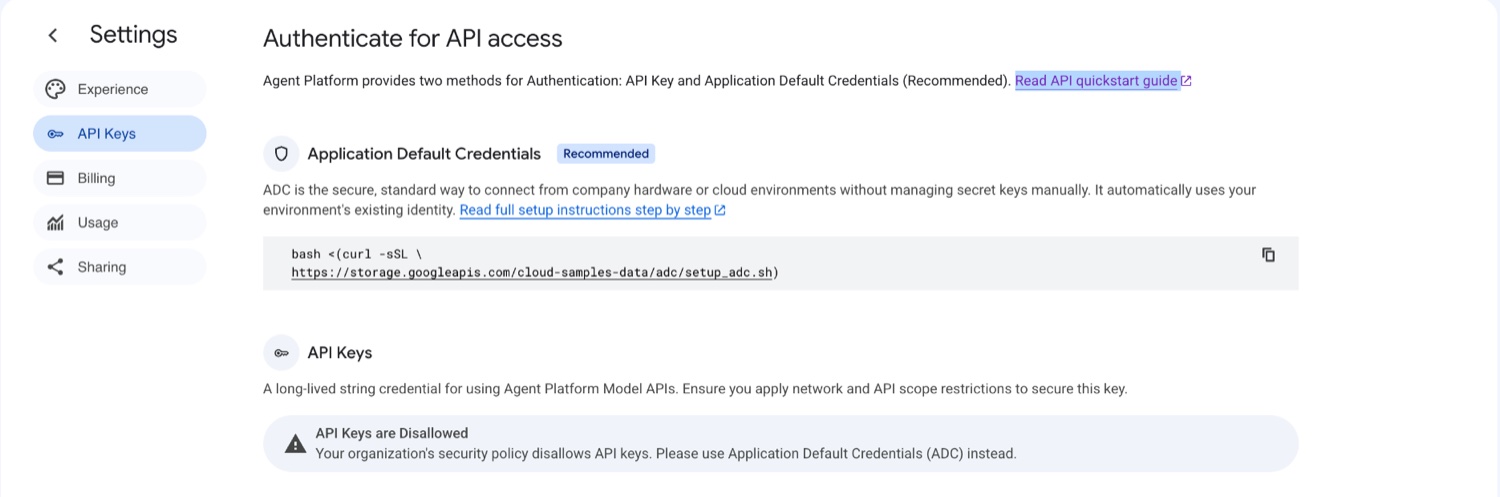
Option A: use the command the console shows you
This is the exact setup command used in the working session. Enter your project ID when prompted.
bash <(curl -sSL https://storage.googleapis.com/cloud-samples-data/adc/setup_adc.sh)Option B: configure ADC directly with gcloud
gcloud auth application-default login
gcloud auth application-default set-quota-project <PROJECT_ID>
Verify the credential file exists
ls -l "$HOME/.config/gcloud/application_default_credentials.json"You should see a file. Do not print its contents into tickets, chat rooms, or documentation.
Optionally, confirm you can obtain a token from it:
gcloud auth application-default print-access-token >/dev/null && echo "ADC token OK"7 Configure LiteLLM
-
Make a dedicated directory:
mkdir -p "$HOME/litellm-vertex" cd "$HOME/litellm-vertex" -
Create
config.yamlin that directory:model_list: - model_name: claude-opus-5 litellm_params: model: vertex_ai/claude-opus-5 vertex_project: "<PROJECT_ID>" vertex_location: "global" # Add a second entry only once you have confirmed that model is # entitled on your project. An unentitled alias loads fine and # then returns 404 on the first real completion request. # - model_name: claude-fable-5 # litellm_params: # model: vertex_ai/claude-fable-5 # vertex_project: "<PROJECT_ID>" # vertex_location: "global"An easy way to create the file is
nano "$HOME/litellm-vertex/config.yaml". Paste the YAML, then press Ctrl+O, Enter, then Ctrl+X.On vertex_location
Claude partner models are served from the
globallocation, not a regional one. The 404 in section 16 shows the request resolving to…/locations/global/publishers/anthropic/…, which is the endpoint that eventually succeeded. -
Verify the file before starting anything:
cat "$HOME/litellm-vertex/config.yaml"Look carefully for a leftover example project from a colleague or a blog post. Every project reference should be yours.
-
Start Docker Desktop and wait until it reports that the engine is running:
open -a Docker
docker info
If docker info fails
Do not continue. An error mentioning
docker.sock,daemon, orfailed to connect to the docker APImeans Docker Desktop is not ready yet. -
Start LiteLLM using ADC:
docker run -d \
  --name litellm \
  --restart unless-stopped \
  -p 127.0.0.1:4000:4000 \
  -v "$HOME/litellm-vertex/config.yaml:/app/config.yaml:ro" \
  -v "$HOME/.config/gcloud/application_default_credentials.json:/app/adc.json:ro" \
  -e GOOGLE_APPLICATION_CREDENTIALS="/app/adc.json" \
  ghcr.io/berriai/litellm:main-latest \
  --config /app/config.yaml --port 4000
The
:rosuffix mounts the credential and config files read-only inside the container. The127.0.0.1prefix keeps the port bound to this Mac rather than published on every network interface. -
Wait for startup:
docker logs -f litellmWait until you see:
Application startup complete.
Uvicorn running on http://0.0.0.0:4000
Press Ctrl+C to stop following the logs. This does not stop the container.
8 Prove LiteLLM Works Before Touching Open WebUI
This separation matters. If these two tests fail, Open WebUI is not the problem and changing its settings will not help.
Test 1: list the models
curl http://localhost:4000/v1/modelsYou should see the model IDs declared in your config:
{"data":[{"id":"claude-opus-5","object":"model", ... }],"object":"list"}A model list proves nothing about access
This endpoint reports the aliases LiteLLM loaded from your config file. It does not contact Google. An alias for a model your project is not entitled to will appear here and still fail on the first completion request.
Test 2: send an actual completion
curl http://localhost:4000/v1/chat/completions \
  -H "Content-Type: application/json" \
  -H "Authorization: Bearer sk-1234" \
  -d '{
    "model": "claude-opus-5",
    "messages": [
      {"role": "user", "content": "Say hello in one sentence."}
    ]
  }'
Do not worry if the returned JSON arrives as one long line. The indicators that matter are:
- The request returns JSON rather than an error.
- The response says
"model":"claude-opus-5". choices[0].message.contentcontains an answer.
Checkpoint
If this request works, then Google authentication, model access, LiteLLM configuration, Docker networking, and the model ID are all correct. Only now move on to Open WebUI.
9 Start Open WebUI
-
Start the container:
docker run -d \ --name open-webui \ --restart unless-stopped \ -p 127.0.0.1:3000:8080 \ -v open-webui:/app/backend/data \ ghcr.io/open-webui/open-webui:main -
Wait ten to thirty seconds, then open
http://localhost:3000and create the initial account. On a fresh installation the first account is normally the administrator. -
Useful health checks:
docker ps
docker logs open-webui --tail 100
10 Connect Open WebUI to LiteLLM
-
In Open WebUI, open Admin / Settings → Connections and add or edit an OpenAI-compatible connection.
-
Use exactly this base URL:
http://host.docker.internal:4000/v1Not
localhost:4000. Inside the Open WebUI container,localhostmeans the Open WebUI container itself. Docker Desktop provideshost.docker.internalso a container can reach a service published on the Mac host. -
For the initial smoke test, use the same bearer value the
curltest used:Auth: Bearer Key: sk-1234 API Type: Chat CompletionsTemporary only
sk-1234is not a deployment secret. It is used here only to match the verified test path. Section 12 replaces it with a random master key. -
Check the port carefully.
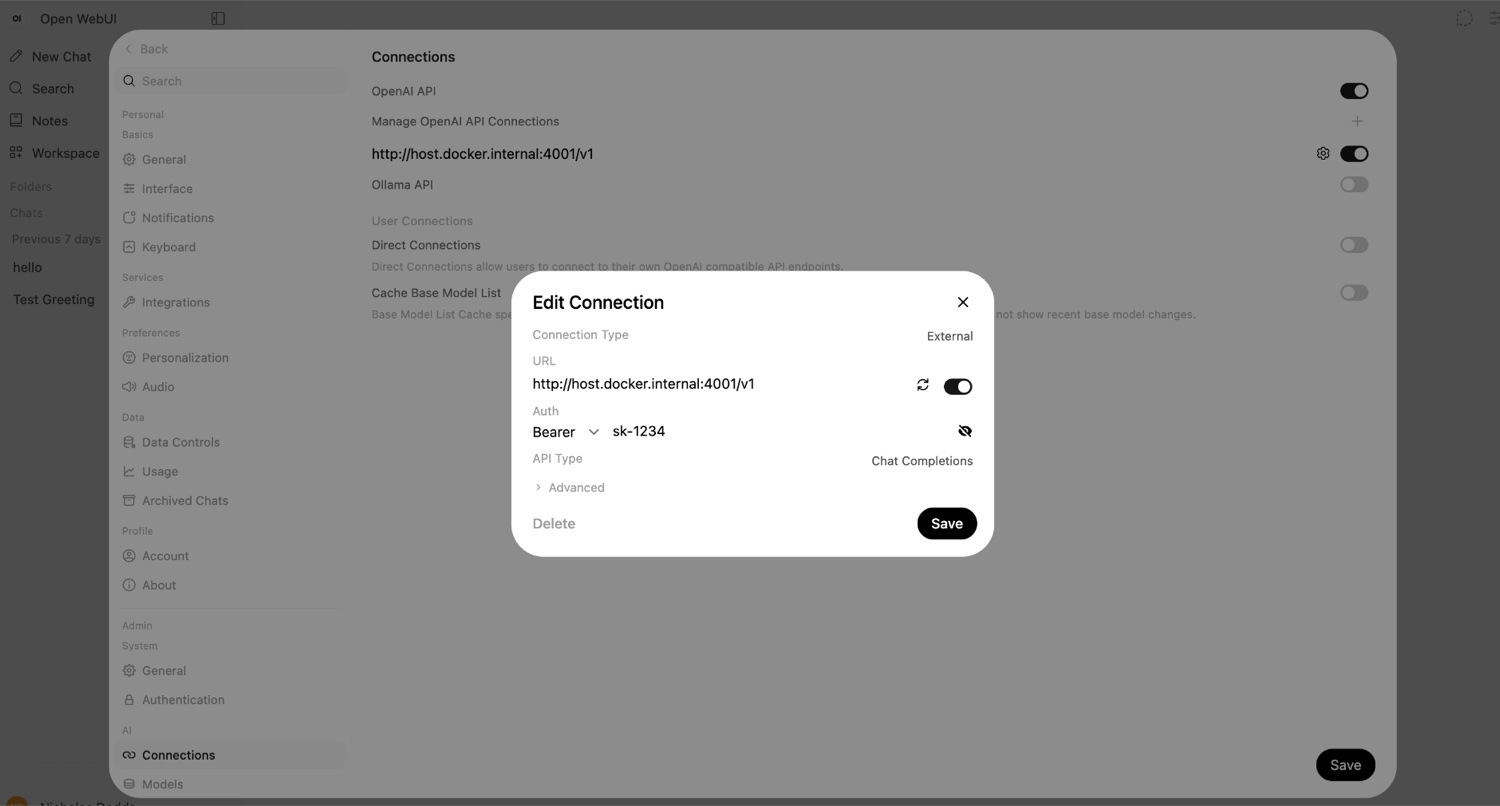
A real failure: the connection was pointed at 4001. LiteLLM was listening on4000, so the model selector stayed empty and nothing in the logs said why. -
Save, return to a new chat, and click the model selector. Your configured model should now be listed.
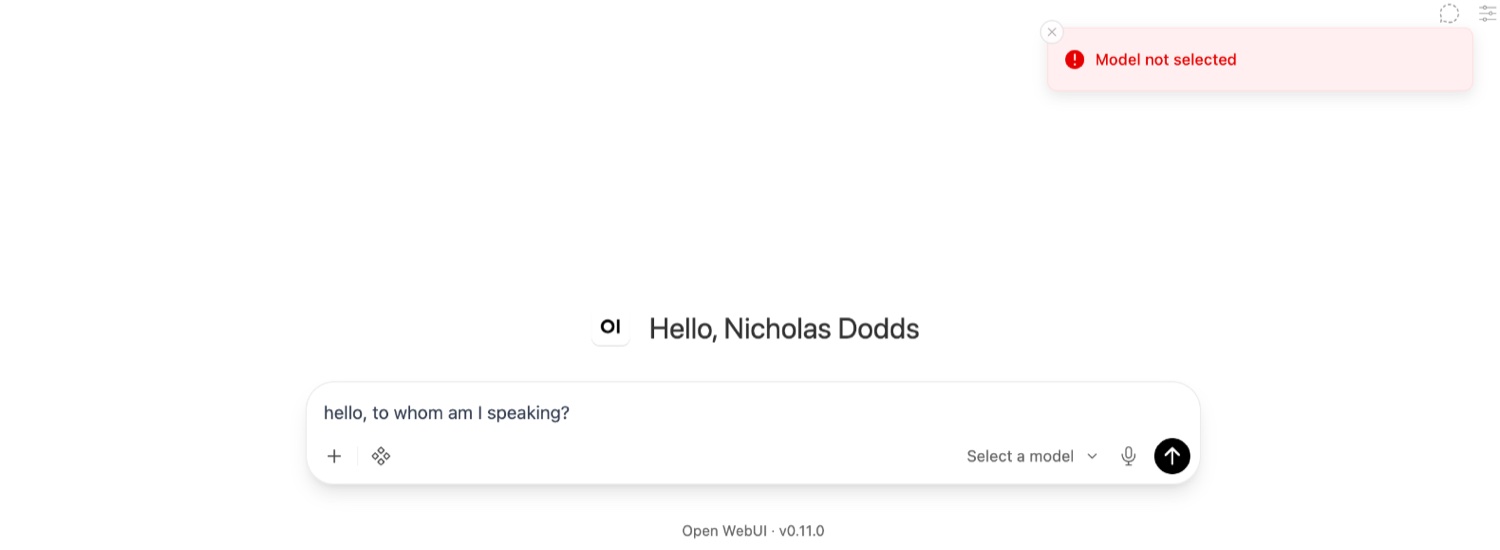
If you see “Model not selected,” click the selector first. If it lists nothing, the connection URL or port is wrong.
11 Final Success Test
Select claude-opus-5 and send a normal message.
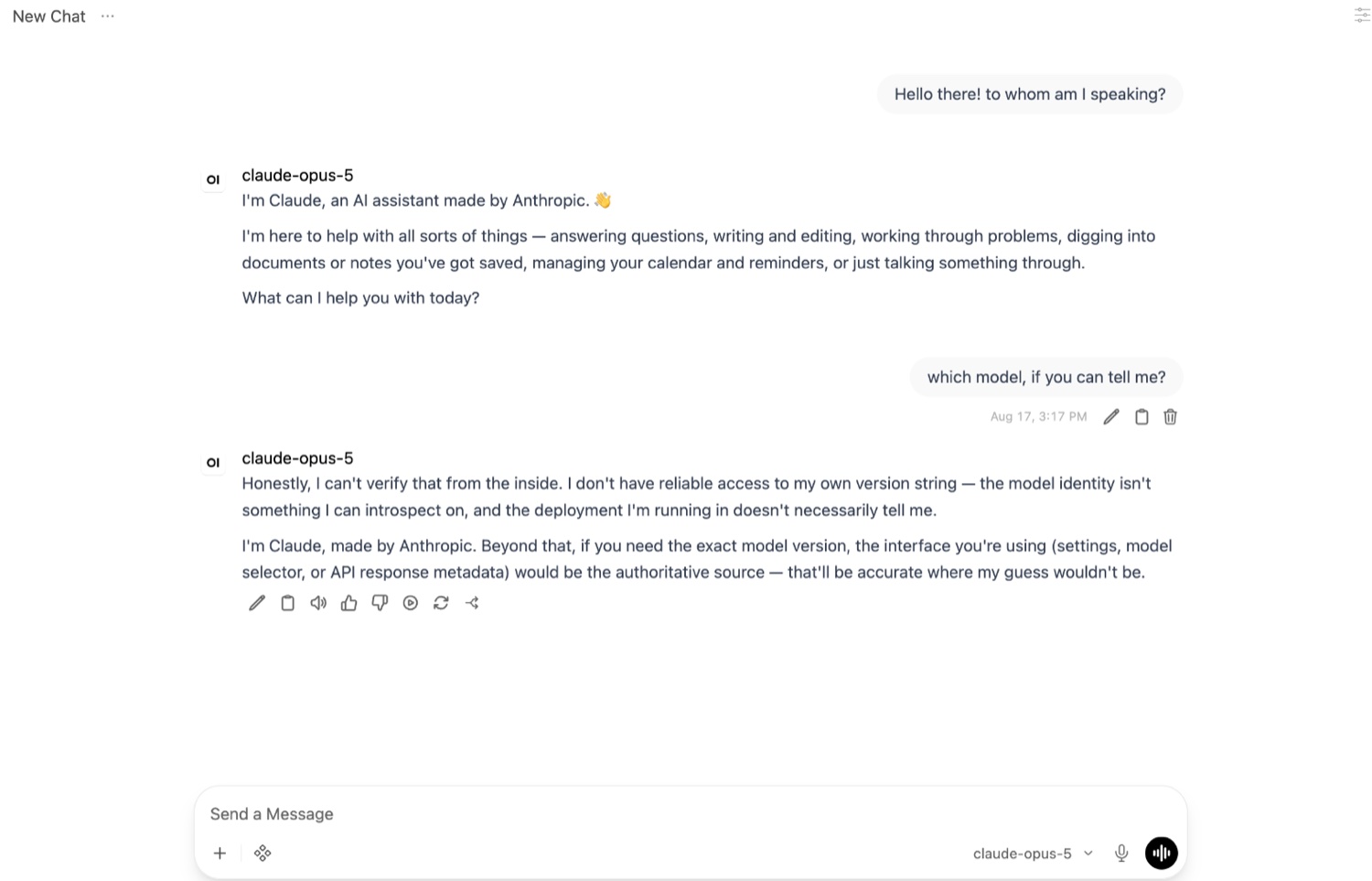
You are done
The complete path now works. Note that a model may say it cannot introspect its own deployment name — as it does above. Treat the Open WebUI model selector and the API response metadata as the authoritative identifier, not the model's own answer.
12 Harden the Local Setup
Get it working first, then secure it. Do not run a shared or network-exposed instance with a trivial key.
A. Set a real LiteLLM master key
LiteLLM documents LITELLM_MASTER_KEY as the proxy admin credential. It must begin with sk-.
# Generate a long random LiteLLM admin key.
export LITELLM_MASTER_KEY="sk-$(openssl rand -hex 32)"

# Save it somewhere secure before continuing.
printf '%s\n' "$LITELLM_MASTER_KEY"

docker rm -f litellm

docker run -d \
  --name litellm \
  --restart unless-stopped \
  -p 127.0.0.1:4000:4000 \
  -v "$HOME/litellm-vertex/config.yaml:/app/config.yaml:ro" \
  -v "$HOME/.config/gcloud/application_default_credentials.json:/app/adc.json:ro" \
  -e GOOGLE_APPLICATION_CREDENTIALS="/app/adc.json" \
  -e LITELLM_MASTER_KEY="$LITELLM_MASTER_KEY" \
  ghcr.io/berriai/litellm:main-latest \
  --config /app/config.yaml --port 4000
After restarting, update the Open WebUI connection to use the generated value instead of sk-1234.
B. Keep the services bound to localhost
This guide deliberately uses:
-p 127.0.0.1:4000:4000
-p 127.0.0.1:3000:8080
That is appropriate for a single-user workstation. Do not change these to 0.0.0.0 casually — doing so publishes an unauthenticated model gateway to every network you join.
C. Treat ADC as a user credential
The file at ~/.config/gcloud/application_default_credentials.json should not be copied into documentation, committed to Git, or handed to other users. The container merely reads it.
D. Production is different
Do not ship this shape
For an institutional or shared service, do not base the service on one person's local ADC login. Use an appropriate Google Cloud runtime identity, workload identity, or service-account deployment pattern, then validate partner-model access for that identity. The local ADC approach here is a reproducible development setup, not the final architecture.
13 Troubleshooting: Match the Symptom Exactly
| Symptom | What it means, and what to do |
|---|---|
does not have permission … <PROJECT>:getIamPolicy |
You copied another person's project ID. Replace every example project ID and service-account domain with your own. |
failed to connect to the docker API … docker.sock |
Docker Desktop is not running. Run open -a Docker, wait, then docker info. |
curl: (56) Recv failure: Connection reset by peer, immediately after starting LiteLLM |
Usually a startup race. Run docker logs litellm and wait for “Application startup complete.” |
Publisher model … was not found or your project does not have access |
Model access, identity, region, or entitlement. First prove the model works in Agent Studio. Then check which identity LiteLLM is using, and that vertex_location is global. In the tested setup, user ADC succeeded where a service-account key returned 404. |
/v1/models works but chat completion returns 404 |
LiteLLM loaded your alias; the provider rejected the actual inference request. Do not treat a successful model list as proof of access — test /v1/chat/completions. |
| Open WebUI says Model not selected | No model chosen, or none loaded from the connection. Click the model selector; if it is empty, inspect the connection. |
Open WebUI connection uses :4001 |
Wrong port. Use http://host.docker.internal:4000/v1. |
zsh: no such file or directory: projects/…/locations/global/… |
You pasted an error-message resource path as if it were a shell command. Resource paths are not commands; only run a line if a command explicitly precedes it. |
zsh: command not found: └── |
You pasted a visual directory tree as a command. Directory-tree graphics are illustrations, not shell syntax. |
Minimum diagnostic bundle
If you are asking someone for help, collect these outputs first:
gcloud auth list
gcloud config get-value project

gcloud services list --enabled \
  --project=<PROJECT_ID> \
  --filter="name:aiplatform.googleapis.com"

docker ps -a
docker logs litellm --tail 150
docker logs open-webui --tail 150

curl http://localhost:4000/v1/models
Do not paste the contents of your ADC JSON file.
Confirm which credential file LiteLLM is using
docker exec litellm sh -lc 'echo "$GOOGLE_APPLICATION_CREDENTIALS"'
docker exec litellm ls -l /app/adc.json
14 Stop, Restart, and Remove the Stack
Both containers use --restart unless-stopped, so they come back when Docker Desktop starts. To stop them for the day and bring them back later:
docker stop litellm open-webui
docker start litellm open-webui
Clean restart after a config change
LiteLLM reads config.yaml at startup, so editing it requires replacing the container:
docker rm -f litellm
docker run -d \
  --name litellm \
  --restart unless-stopped \
  -p 127.0.0.1:4000:4000 \
  -v "$HOME/litellm-vertex/config.yaml:/app/config.yaml:ro" \
  -v "$HOME/.config/gcloud/application_default_credentials.json:/app/adc.json:ro" \
  -e GOOGLE_APPLICATION_CREDENTIALS="/app/adc.json" \
  ghcr.io/berriai/litellm:main-latest \
  --config /app/config.yaml --port 4000
Open WebUI can be replaced the same way. Its named volume preserves accounts, chats, and connection settings across container replacement:
docker rm -f open-webui
docker run -d \
  --name open-webui \
  --restart unless-stopped \
  -p 127.0.0.1:3000:8080 \
  -v open-webui:/app/backend/data \
  ghcr.io/open-webui/open-webui:main
Remove everything
docker rm -f litellm open-webui
docker volume rm open-webui
rm -rf "$HOME/litellm-vertex"
The volume is the data
docker volume rm open-webui permanently deletes every account, chat, and connection stored in Open WebUI. Removing the container alone does not.
To revoke the credential itself, which is separate from Docker entirely:
gcloud auth application-default revoke15 One-Screen Quick Checklist
- Correct Google Cloud project selected.
- Billing available.
- Agent Platform API enabled.
- Claude works directly in Agent Studio.
- ADC configured, and
application_default_credentials.jsonexists. - Docker Desktop running.
~/litellm-vertex/config.yamluses your project ID andvertex_location: "global".- LiteLLM logs show
Application startup complete. curl localhost:4000/v1/modelslists your models.- A direct
/v1/chat/completionscall succeeds. - Open WebUI running at
localhost:3000. - The connection is
http://host.docker.internal:4000/v1, not port 4001. - The Claude model appears in the selector and returns a response.
- The test key is replaced with a real LiteLLM master key before wider use.
16 Appendix: Evidence From the Working Session
The following is included so you can compare your own output against a real setup, mistakes and recovery included. Project IDs, account names, and hostnames have been replaced with placeholders.
Condensed session transcript
$ gcloud config set project <PROJECT_ID>
Reauthentication required.
ERROR: (gcloud.config.set) Please run:
  $ gcloud auth login
to complete reauthentication.

$ gcloud auth login
...
You are now logged in as [<YOUR_ACCOUNT>].
Your current project is [<PROJECT_ID>].

$ gcloud iam service-accounts create litellm-vertex-sa \
  --description="Service account for LiteLLM and Open WebUI Vertex AI access" \
  --display-name="LiteLLM Vertex SA"
Created service account [litellm-vertex-sa].
Service account email: <SA_NAME>@<PROJECT_ID>.iam.gserviceaccount.com

# Mistake: this line pasted someone else's project ID.
$ gcloud projects add-iam-policy-binding <SOMEONE_ELSES_PROJECT> \
  --member="serviceAccount:<SA_NAME>@<SOMEONE_ELSES_PROJECT>.iam.gserviceaccount.com" \
  --role="roles/aiplatform.user"
ERROR: (gcloud.projects.add-iam-policy-binding) [<YOUR_ACCOUNT>] does not have
permission to access projects instance [<SOMEONE_ELSES_PROJECT>:getIamPolicy] ...

$ gcloud projects add-iam-policy-binding <PROJECT_ID> \
  --member="serviceAccount:<SA_NAME>@<PROJECT_ID>.iam.gserviceaccount.com" \
  --role="roles/aiplatform.user"
Updated IAM policy for project [<PROJECT_ID>].
...
role: roles/aiplatform.user

$ gcloud iam service-accounts keys create gcp-key.json \
  --iam-account=<SA_NAME>@<PROJECT_ID>.iam.gserviceaccount.com
created key [REDACTED_KEY_ID] of type [json] as [gcp-key.json]

$ docker run -d --name litellm -p 4000:4000 \
  -v "$(pwd)/config.yaml:/app/config.yaml" \
  -v "$(pwd)/gcp-key.json:/app/gcp-key.json" \
  -e GOOGLE_APPLICATION_CREDENTIALS="/app/gcp-key.json" \
  ghcr.io/berriai/litellm:main-latest --config /app/config.yaml --port 4000
failed to connect to the docker API at unix:///.../docker.sock;
check if the path is correct and if the daemon is running ...

# Docker Desktop was started. LiteLLM then launched, but model calls failed:
Publisher model `projects/<PROJECT_ID>/locations/global/publishers/anthropic/models/claude-opus-5`
was not found or your project does not have access to it.

$ gcloud services list --enabled \
  --project=<PROJECT_ID> \
  --filter="name:aiplatform.googleapis.com"
NAME                       TITLE
aiplatform.googleapis.com  Agent Platform API

$ bash <(curl -sSL https://storage.googleapis.com/cloud-samples-data/adc/setup_adc.sh)
...
Credentials saved to file: [~/.config/gcloud/application_default_credentials.json]
Quota project "<PROJECT_ID>" was added to ADC ...
SUCCESS! Your Model API access is fully working.

# The same config, now running on ADC instead of the service-account key.
$ docker run -d --name litellm -p 4000:4000 \
  -v "$HOME/litellm-vertex/config.yaml:/app/config.yaml" \
  -v "$HOME/.config/gcloud/application_default_credentials.json:/app/adc.json:ro" \
  -e GOOGLE_APPLICATION_CREDENTIALS="/app/adc.json" \
  ghcr.io/berriai/litellm:main-latest --config /app/config.yaml --port 4000
960fdc780e3e ...

$ curl http://localhost:4000/v1/chat/completions ...
curl: (56) Recv failure: Connection reset by peer

$ docker logs litellm
INFO:     Started server process [1]
INFO:     Waiting for application startup.
...
INFO:     Application startup complete.
INFO:     Uvicorn running on http://0.0.0.0:4000

$ curl http://localhost:4000/v1/models
{"data":[{"id":"claude-opus-5","object":"model", ... }],"object":"list"}

$ curl http://localhost:4000/v1/chat/completions \
  -H "Content-Type: application/json" \
  -H "Authorization: Bearer sk-1234" \
  -d '{"model":"claude-opus-5",
       "messages":[{"role":"user","content":"Say hello in one sentence."}]}'

{"id":"chatcmpl-833456da-8397-4cd0-9801-8088cae54664",
 "model":"claude-opus-5",
 "object":"chat.completion",
 "choices":[{"finish_reason":"stop","message":{
   "content":"Hello there — it's a pleasure to meet you, and I hope your day is going well!",
   "role":"assistant"
 }}],
 "usage":{"completion_tokens":29,"prompt_tokens":16,"total_tokens":45}}
The 404 from the service-account phase
LiteLLM Proxy:ERROR: common_request_processing.py:1012 -
litellm.NotFoundError: VertexAIException - {
  "error": {
    "code": 404,
    "message": "Publisher model `projects/<PROJECT_ID>/locations/global/publishers/anthropic/models/claude-opus-5` was not found or your project does not have access to it. Ensure you are using a valid model name and that the model is available in the specified region.",
    "status": "NOT_FOUND"
  }
}
. Received Model Group=claude-opus-5
Available Model Group Fallbacks=None

Traceback (most recent call last):
  File ".../litellm/llms/anthropic/chat/handler.py", line 274, in acompletion_function
    response: Final = await async_handler.post( ... )
  File ".../litellm/llms/custom_httpx/http_handler.py", line 487, in _raise_masked_async_error
    raise MaskedHTTPStatusError(e, message=_text, text=_text) from None
litellm.llms.custom_httpx.http_handler.MaskedHTTPStatusError: Client error '404 Not Found' for url
'https://aiplatform.googleapis.com/v1/projects/<PROJECT_ID>/locations/global/publishers/anthropic/models/claude-opus-5:rawPredict'

      [ ~150 lines of internal litellm router retry and fallback frames omitted ]

  File ".../litellm/litellm_core_utils/exception_mapping_utils.py", line 1238, in _map_vertex_exception
    raise NotFoundError( ... )
litellm.exceptions.NotFoundError: litellm.NotFoundError: VertexAIException - 404 NOT_FOUND
INFO:     192.168.65.1:57915 - "POST /v1/chat/completions HTTP/1.1" 404 Not Found
What the 404 phase taught us
The service-account attempt reached Google successfully and Google returned a model 404 NOT_FOUND. The same LiteLLM configuration then succeeded once the container used the user's ADC file. That is a diagnostic observation from this environment, not a universal rule that service accounts cannot call Claude. For a production service, the correct response is to validate the effective partner-model entitlement for the service identity — not to copy a user's ADC file into the deployment.
17 Official References
The primary documentation used to validate the moving parts of this guide.
- Google Cloud: Configure Application Default Credentials
- Google Cloud: Agent Platform authentication
- Google Cloud: Claude Opus 5 model card
- Google Cloud: Request predictions with Claude models
- LiteLLM: Proxy configuration
- LiteLLM: Production best practices
- Open WebUI: OpenAI-compatible provider setup
- Open WebUI: FAQ and Docker networking
Model catalogues, product names, interface layouts, and authentication guidance all change. This guide was assembled and validated on August 17, 2026 against a single macOS workstation and one Google Cloud project.