Claude through Google Cloud
Chat with Claude in Open WebUI on your Mac, through a local LiteLLM proxy to Google Cloud's Agent Platform, testing each layer before the next.
Tested August 17, 2026 on one Mac and one Google Cloud project. Later checked against documentation, not rerun; see Testing and references.
What you'll build
| Part | What it does |
|---|---|
| Open WebUI | The chat interface in your browser |
| LiteLLM | An OpenAI-compatible gateway that translates Open WebUI's requests for Google's Claude endpoint |
| Google Agent Platform | Hosts the Claude models and handles access and billing |
| ADC | Application Default Credentials: your Google sign-in, which LiteLLM uses to call Google |
You're done when you can pick claude-opus-5 in Open WebUI and get a reply, and a direct curl test of LiteLLM works too.
This sets up one Mac with Docker Desktop and your personal Google sign-in. It's a local proof of concept, not a production deployment: a shared service should use a workload identity or service account, not one person's credentials (step 10).
Before you start
- A Google account that can use a Google Cloud project, with billing enabled (or provided by your organisation).
- Your organisation allows the Claude partner models.
- A Mac with Docker Desktop, and Terminal.
Use your own project ID
Replace every <PROJECT_ID> with your own Google Cloud project ID. Copying someone else's caused a confusing permission error in the tested session.
1. Choose the project
- In the Google Cloud Console, select the project you'll use and note its Project ID. It often differs from the display name, and only the ID works in commands.
- Open Billing for the project and check it's linked to an active billing account. In a managed organisation, an administrator may have to do this.
- The Agent Platform API must be enabled. Step 3 checks this; the Agent Platform pages can also enable it for you.
2. Enable Claude in Google
Do this before touching Docker or LiteLLM: if Claude doesn't work in Google's own Agent Studio, it won't work through LiteLLM either.
- Open Agent Platform > Model Garden and find the Claude model. This guide uses
claude-opus-5; Google's partner-model docs list the model IDs. -
If an Enable APIs dialog opens, let it finish. A listed model doesn't mean its APIs are ready.
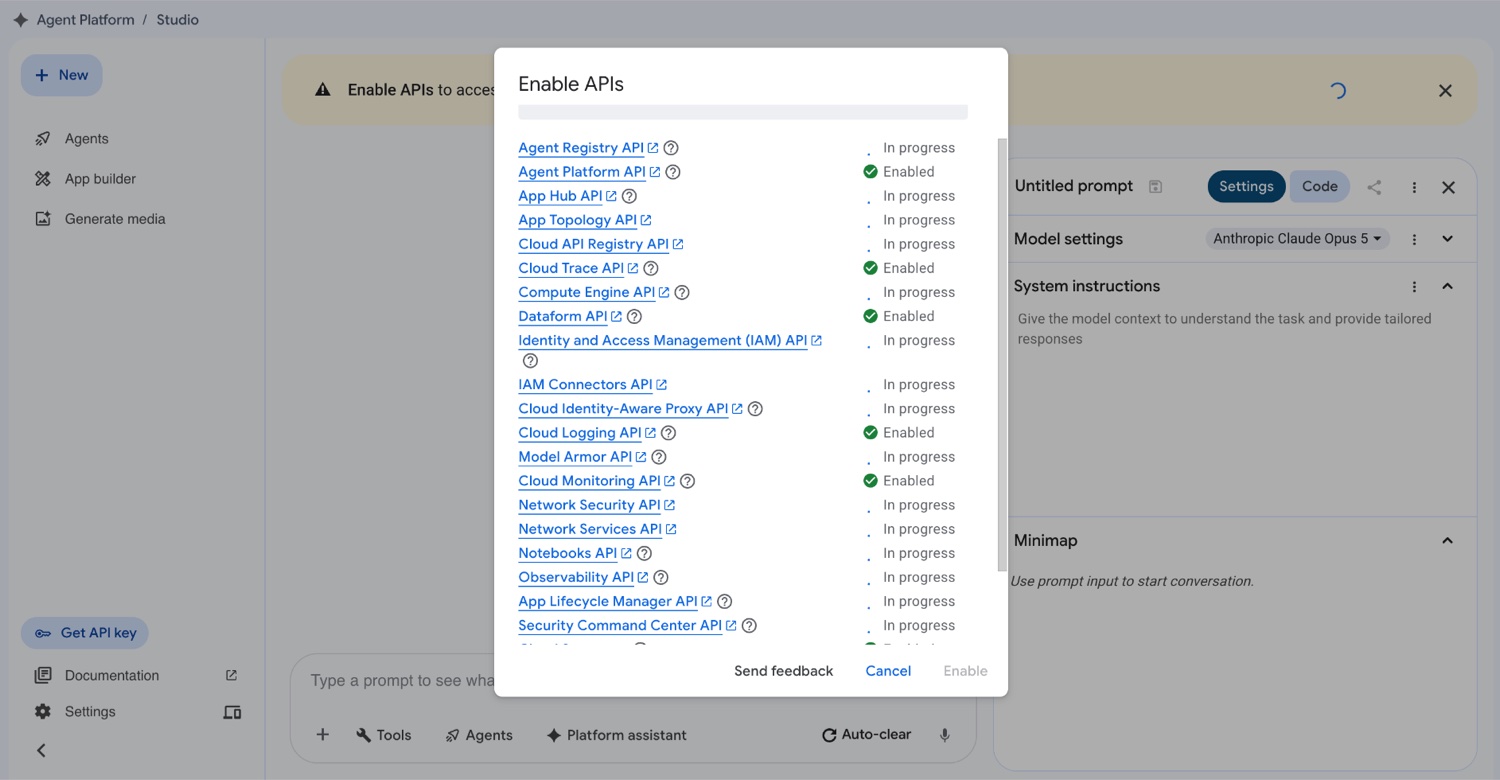
Wait for every API to finish enabling before testing. -
Open the model in Agent Studio and check the model selector shows it.
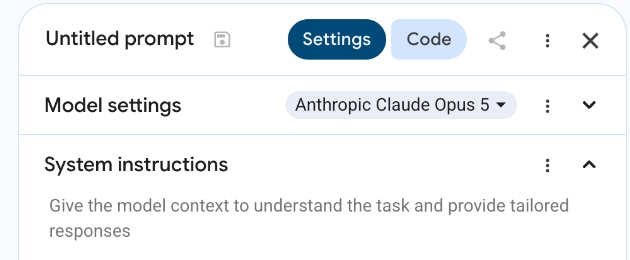
The model selector is in the prompt settings panel on the right. -
Send a test message.
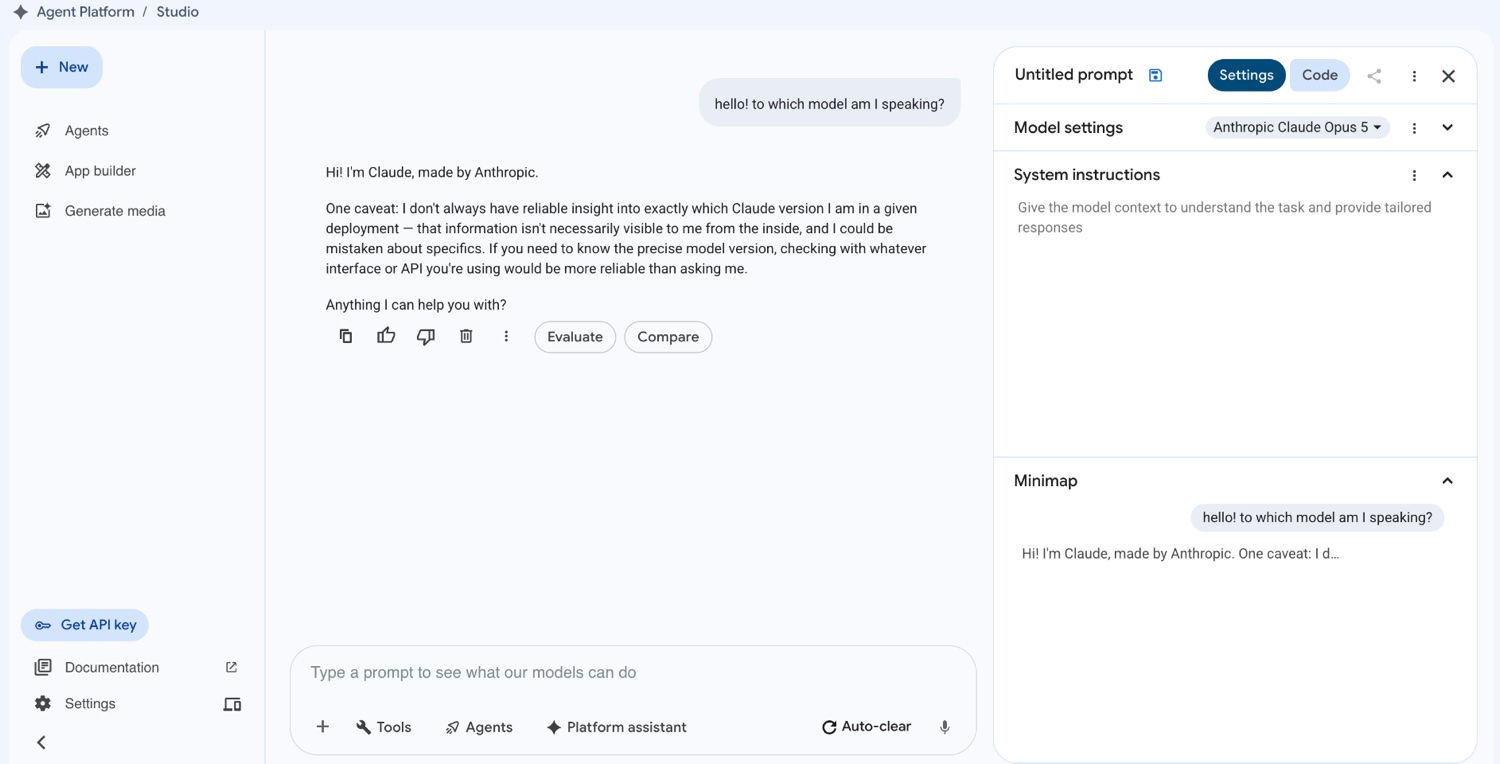
A test reply from Claude Opus 5 in Agent Studio.
Claude replies in Agent Studio, which shows your project and your own Google identity can reach the model.
3. Set up the gcloud CLI
-
Check whether
gcloudis installed; if it isn't, install the Google Cloud CLI first.gcloud --version -
Set your project:
gcloud config set project <PROJECT_ID>If it says
Reauthentication required, sign in and set the project again:gcloud auth login gcloud config set project <PROJECT_ID> -
Check your active account and project:
gcloud auth list gcloud config get-value project -
Check the Agent Platform API is enabled:
gcloud services list --enabled \
  --project=<PROJECT_ID> \
  --filter="name:aiplatform.googleapis.com"
NAME TITLE aiplatform.googleapis.com Agent Platform APIIf no row appears, enable it:
gcloud services enable aiplatform.googleapis.com \ --project=<PROJECT_ID>
aiplatform.googleapis.com is listed as enabled.
4. Set up credentials
LiteLLM signs in to Google with Application Default Credentials (ADC). Google recommends ADC for Agent Platform, and in the tested organisation it was the only option: policy blocked API keys.
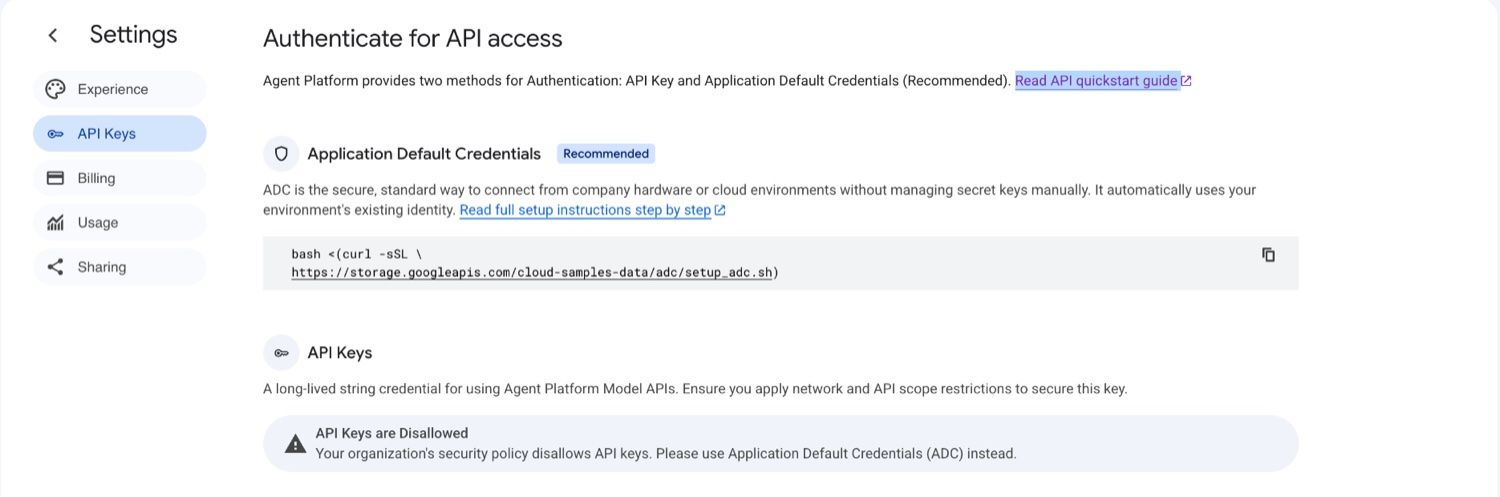
Set up ADC with option A, the command the tested session used, or option B, then verify the file.
Option A: the console's setup command
This is the command the tested session used. Enter your project ID when asked.
bash <(curl -sSL https://storage.googleapis.com/cloud-samples-data/adc/setup_adc.sh)Option B: gcloud directly
gcloud auth application-default login
gcloud auth application-default set-quota-project <PROJECT_ID>Verify the credential file
ls -l "$HOME/.config/gcloud/application_default_credentials.json"The file is listed. Optional: confirm it can produce a token.
gcloud auth application-default print-access-token >/dev/null && echo "ADC token OK"Keep this file private
The credentials file is your Google sign-in. Never paste its contents into tickets, chats or documents, commit it to Git, or give it to anyone.
5. Start LiteLLM
-
Make a folder for it:
mkdir -p "$HOME/litellm-vertex" cd "$HOME/litellm-vertex" -
Create
config.yamlin that folder, for example withnano "$HOME/litellm-vertex/config.yaml"(paste, then Ctrl+O, Enter, Ctrl+X):model_list: - model_name: claude-opus-5 litellm_params: model: vertex_ai/claude-opus-5 vertex_project: "<PROJECT_ID>" vertex_location: "global" # Add a second entry only once you have confirmed that model is # entitled on your project. An unentitled alias loads fine and # then returns 404 on the first real completion request. # - model_name: claude-fable-5 # litellm_params: # model: vertex_ai/claude-fable-5 # vertex_project: "<PROJECT_ID>" # vertex_location: "global"About
vertex_location: the tested setup usedglobal. Not every Claude model is available there: Google offers global, multi-region and regional endpoints. Check your model's supported locations and your project's access before copying this. -
Check the file, making sure every project ID is yours and none is left over from an example:
cat "$HOME/litellm-vertex/config.yaml" -
Start Docker Desktop and wait until the engine is running:
open -a Docker docker infoIf
docker infomentionsdocker.sock,daemonorfailed to connect to the docker API, Docker isn't ready yet. Wait, and don't continue until it succeeds. -
Start LiteLLM with your credentials.
:romounts the files read-only, and127.0.0.1keeps the port on this Mac only.docker run -d \ --name litellm \ --restart unless-stopped \ -p 127.0.0.1:4000:4000 \ -v "$HOME/litellm-vertex/config.yaml:/app/config.yaml:ro" \ -v "$HOME/.config/gcloud/application_default_credentials.json:/app/adc.json:ro" \ -e GOOGLE_APPLICATION_CREDENTIALS="/app/adc.json" \ ghcr.io/berriai/litellm:main-latest \ --config /app/config.yaml --port 4000 -
Follow the log until it's ready:
docker logs -f litellmApplication startup complete. Uvicorn running on http://0.0.0.0:4000Press Ctrl+C to stop following the log; the container keeps running.
The log shows Application startup complete.
6. Test LiteLLM on its own
If these tests fail, the problem isn't Open WebUI, and changing its settings won't help.
List the models
curl http://localhost:4000/v1/models{"data":[{"id":"claude-opus-5","object":"model", ... }],"object":"list"}A model list isn't proof of access: this only lists the names LiteLLM read from your config, without contacting Google. A model your project can't use still appears here and then fails on the first real request.
Send a real request
curl http://localhost:4000/v1/chat/completions \
-H "Content-Type: application/json" \
-H "Authorization: Bearer sk-1234" \
-d '{
"model": "claude-opus-5",
"messages": [
{"role": "user", "content": "Say hello in one sentence."}
]
}'You get JSON back (often on one long line) with "model":"claude-opus-5" and an answer in choices[0].message.content. That proves your Google sign-in, model access, LiteLLM config, Docker networking and model ID are all right. Only now move on to Open WebUI.
7. Start Open WebUI
-
Start the container:
docker run -d \ --name open-webui \ --restart unless-stopped \ -p 127.0.0.1:3000:8080 \ -v open-webui:/app/backend/data \ ghcr.io/open-webui/open-webui:main - After 10–30 seconds, open
http://localhost:3000and create the first account, which normally becomes the administrator. -
If it doesn't load, check the containers and the log:
docker ps docker logs open-webui --tail 100
8. Connect Open WebUI
- In Open WebUI, open Admin > Settings > Connections, and add or edit an OpenAI-compatible connection.
-
Set the base URL to exactly:
http://host.docker.internal:4000/v1Not
localhost:4000: inside the Open WebUI container,localhostis the container itself. Docker Desktop'shost.docker.internalreaches your Mac. -
For this first test, use the same key as the
curltest:Auth: Bearer Key: sk-1234 API Type: Chat CompletionsTemporary key
sk-1234only matches the test above. Step 10 replaces it with a random key. -
Double-check the port is
4000.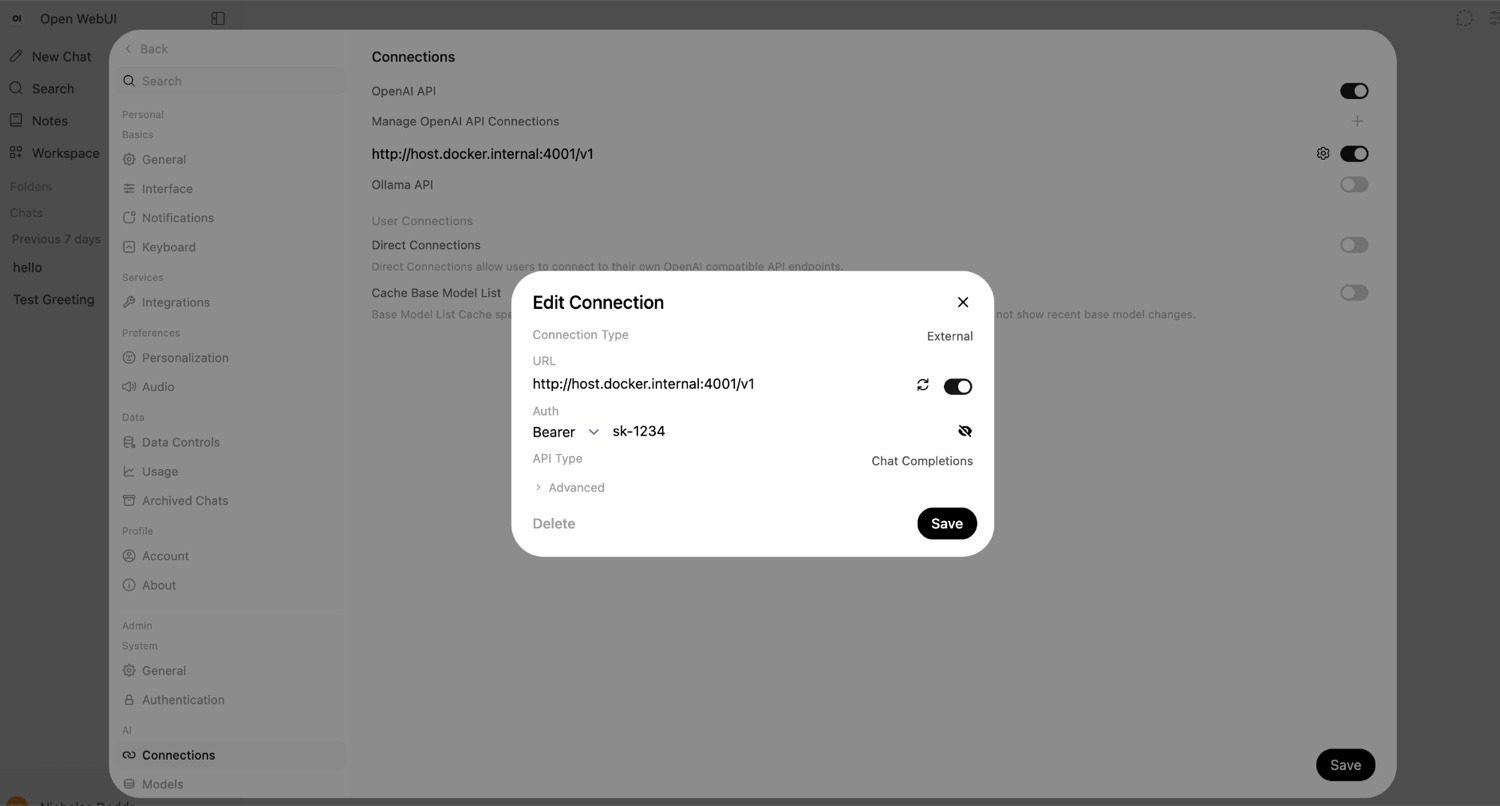
A real mistake: port 4001instead of4000. The model list stayed empty and nothing in the logs said why. -
Save, start a new chat and open the model selector.
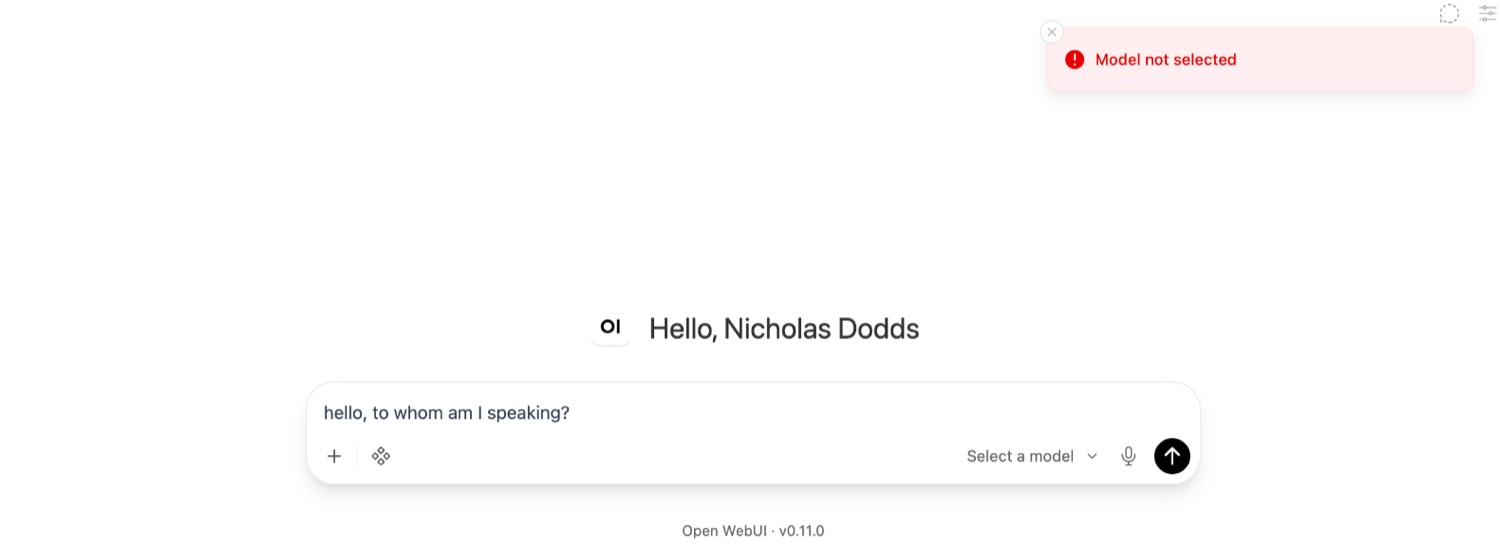
“Model not selected” means pick one from the selector. If the selector is empty, the URL or port is wrong.
claude-opus-5 appears in the model selector.
9. Send a test message
Select claude-opus-5 and send a normal message.
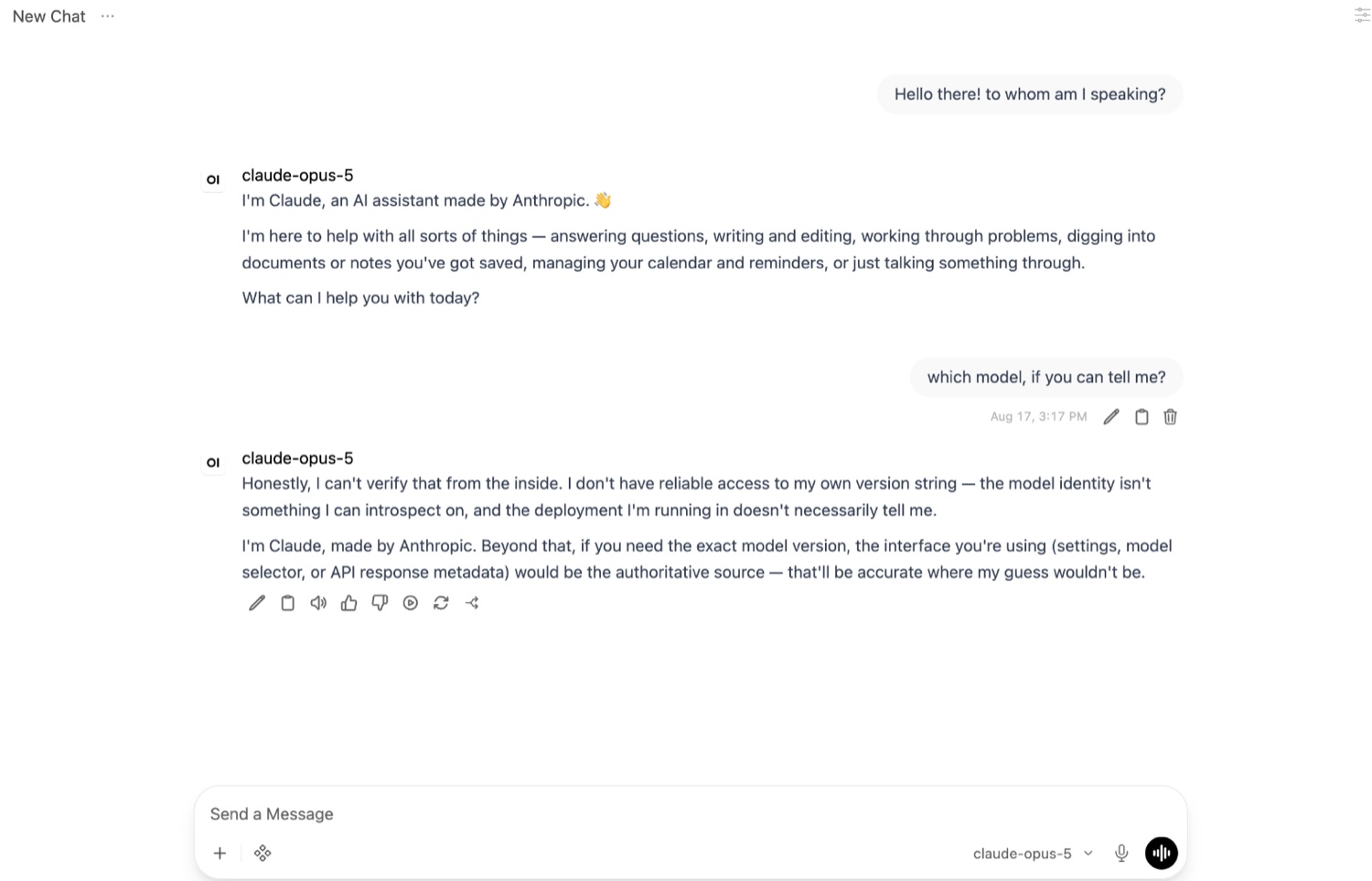
Claude replies. The model may say it can't tell which deployment it is, as it does here; trust the model selector and the API response, not its own answer.
10. Secure the setup
Do this before anyone else uses it.
Set a real LiteLLM master key
LITELLM_MASTER_KEY is LiteLLM's admin key and must start with sk-. This generates one and recreates the container with it. Save the printed key somewhere safe.
# Generate a long random LiteLLM admin key.
export LITELLM_MASTER_KEY="sk-$(openssl rand -hex 32)"
# Save it somewhere secure before continuing.
printf '%s\n' "$LITELLM_MASTER_KEY"
docker rm -f litellm
docker run -d \
--name litellm \
--restart unless-stopped \
-p 127.0.0.1:4000:4000 \
-v "$HOME/litellm-vertex/config.yaml:/app/config.yaml:ro" \
-v "$HOME/.config/gcloud/application_default_credentials.json:/app/adc.json:ro" \
-e GOOGLE_APPLICATION_CREDENTIALS="/app/adc.json" \
-e LITELLM_MASTER_KEY="$LITELLM_MASTER_KEY" \
ghcr.io/berriai/litellm:main-latest \
--config /app/config.yaml --port 4000Then change the Open WebUI connection's key from sk-1234 to the new one.
Keep the services on this Mac
The commands publish ports only on 127.0.0.1:
-p 127.0.0.1:4000:4000
-p 127.0.0.1:3000:8080Keep these on 127.0.0.1
Don't change these to 0.0.0.0. That publishes the model gateway, billed to your account, on every network you join.
Treat ADC as your sign-in
The container only reads ~/.config/gcloud/application_default_credentials.json. Never copy it into documentation, Git or anyone else's hands.
Production is different
Don't ship this setup
A shared or institutional service must not run on one person's ADC sign-in. Use a Google Cloud runtime identity, workload identity or service account, and confirm Claude access for that identity.
Troubleshooting
If something isn't working, check these in order:
- The right Google Cloud project, with billing.
- Agent Platform API enabled.
- Claude replies directly in Agent Studio.
- ADC set up, and
application_default_credentials.jsonexists. - Docker Desktop running.
~/litellm-vertex/config.yamluses your project ID andvertex_location: "global".- LiteLLM's log shows
Application startup complete. curl localhost:4000/v1/modelslists your models, and a direct/v1/chat/completionscall succeeds.- Open WebUI runs at
localhost:3000, connected tohttp://host.docker.internal:4000/v1(not port 4001). - Claude appears in the selector and replies.
- The test key is replaced with a real master key before wider use.
Then look up the symptom:
| Symptom | Cause and fix |
|---|---|
does not have permission … <PROJECT>:getIamPolicy | Someone else's project ID was copied. Replace every example project ID and service-account domain with your own. |
failed to connect to the docker API … docker.sock | Docker Desktop isn't running. Run open -a Docker, wait, then docker info. |
curl: (56) Recv failure: Connection reset by peer right after starting LiteLLM | Usually it's still starting. Run docker logs litellm and wait for “Application startup complete.” |
Publisher model … was not found or your project does not have access | Model access, identity, region or entitlement. First check the model works in Agent Studio, then which identity LiteLLM uses, and that vertex_location is global. In testing, user ADC worked where a service-account key returned 404. |
/v1/models works but a chat request returns 404 | LiteLLM loaded the name, but Google refused the request. Test /v1/chat/completions; a model list proves nothing about access. |
| Open WebUI says “Model not selected” | No model chosen, or none loaded. Open the selector; if it's empty, check the connection. |
The connection uses :4001 | Wrong port. Use http://host.docker.internal:4000/v1. |
zsh: no such file or directory: projects/…/locations/global/… | A resource path from an error message was pasted as a command. Only run lines that are commands. |
zsh: command not found: └── | A directory-tree drawing was pasted as a command. Tree drawings aren't commands. |
What to send when asking for help
gcloud auth list
gcloud config get-value project
gcloud services list --enabled \
--project=<PROJECT_ID> \
--filter="name:aiplatform.googleapis.com"
docker ps -a
docker logs litellm --tail 150
docker logs open-webui --tail 150
curl http://localhost:4000/v1/modelsNever include the contents of your ADC file.
Check which credential LiteLLM uses
docker exec litellm sh -lc 'echo "$GOOGLE_APPLICATION_CREDENTIALS"'
docker exec litellm ls -l /app/adc.jsonStop or undo
Both containers restart with Docker Desktop (--restart unless-stopped). To stop them for the day and start them again later:
docker stop litellm open-webui
docker start litellm open-webuiRestart after changing the config
LiteLLM reads config.yaml when it starts. Restarting keeps the master key, mounts and other options:
docker restart litellmIf you change environment variables or the image, recreate the container with the full command from step 10, including LITELLM_MASTER_KEY, and check that requests without the key are refused before reconnecting Open WebUI.
You can replace Open WebUI the same way; its named volume keeps accounts, chats and connection settings:
docker rm -f open-webui
docker run -d \
--name open-webui \
--restart unless-stopped \
-p 127.0.0.1:3000:8080 \
-v open-webui:/app/backend/data \
ghcr.io/open-webui/open-webui:mainRemove everything
This deletes your chats
docker volume rm open-webui permanently deletes every Open WebUI account, chat and connection. Removing only the container doesn't.
docker rm -f litellm open-webui
docker volume rm open-webui
rm -rf "$HOME/litellm-vertex"To revoke the Google credential itself, which is separate from Docker:
gcloud auth application-default revokeBackground: the tested session
The session's own output, so you can compare yours, mistakes and recovery included. Project IDs, accounts and hostnames are replaced with placeholders.
Condensed session transcript
$ gcloud config set project <PROJECT_ID>
Reauthentication required.
ERROR: (gcloud.config.set) Please run:
$ gcloud auth login
to complete reauthentication.
$ gcloud auth login
...
You are now logged in as [<YOUR_ACCOUNT>].
Your current project is [<PROJECT_ID>].
$ gcloud iam service-accounts create litellm-vertex-sa \
--description="Service account for LiteLLM and Open WebUI Vertex AI access" \
--display-name="LiteLLM Vertex SA"
Created service account [litellm-vertex-sa].
Service account email: <SA_NAME>@<PROJECT_ID>.iam.gserviceaccount.com
# Mistake: this line pasted someone else's project ID.
$ gcloud projects add-iam-policy-binding <SOMEONE_ELSES_PROJECT> \
--member="serviceAccount:<SA_NAME>@<SOMEONE_ELSES_PROJECT>.iam.gserviceaccount.com" \
--role="roles/aiplatform.user"
ERROR: (gcloud.projects.add-iam-policy-binding) [<YOUR_ACCOUNT>] does not have
permission to access projects instance [<SOMEONE_ELSES_PROJECT>:getIamPolicy] ...
$ gcloud projects add-iam-policy-binding <PROJECT_ID> \
--member="serviceAccount:<SA_NAME>@<PROJECT_ID>.iam.gserviceaccount.com" \
--role="roles/aiplatform.user"
Updated IAM policy for project [<PROJECT_ID>].
...
role: roles/aiplatform.user
$ gcloud iam service-accounts keys create gcp-key.json \
--iam-account=<SA_NAME>@<PROJECT_ID>.iam.gserviceaccount.com
created key [REDACTED_KEY_ID] of type [json] as [gcp-key.json]
$ docker run -d --name litellm -p 4000:4000 \
-v "$(pwd)/config.yaml:/app/config.yaml" \
-v "$(pwd)/gcp-key.json:/app/gcp-key.json" \
-e GOOGLE_APPLICATION_CREDENTIALS="/app/gcp-key.json" \
ghcr.io/berriai/litellm:main-latest --config /app/config.yaml --port 4000
failed to connect to the docker API at unix:///.../docker.sock;
check if the path is correct and if the daemon is running ...
# Docker Desktop was started. LiteLLM then launched, but model calls failed:
Publisher model `projects/<PROJECT_ID>/locations/global/publishers/anthropic/models/claude-opus-5`
was not found or your project does not have access to it.
$ gcloud services list --enabled \
--project=<PROJECT_ID> \
--filter="name:aiplatform.googleapis.com"
NAME                       TITLE
aiplatform.googleapis.com  Agent Platform API
$ bash <(curl -sSL https://storage.googleapis.com/cloud-samples-data/adc/setup_adc.sh)
...
Credentials saved to file: [~/.config/gcloud/application_default_credentials.json]
Quota project "<PROJECT_ID>" was added to ADC ...
SUCCESS! Your Model API access is fully working.
# The same config, now running on ADC instead of the service-account key.
$ docker run -d --name litellm -p 4000:4000 \
-v "$HOME/litellm-vertex/config.yaml:/app/config.yaml" \
-v "$HOME/.config/gcloud/application_default_credentials.json:/app/adc.json:ro" \
-e GOOGLE_APPLICATION_CREDENTIALS="/app/adc.json" \
ghcr.io/berriai/litellm:main-latest --config /app/config.yaml --port 4000
960fdc780e3e ...
$ curl http://localhost:4000/v1/chat/completions ...
curl: (56) Recv failure: Connection reset by peer
$ docker logs litellm
INFO: Started server process [1]
INFO: Waiting for application startup.
...
INFO: Application startup complete.
INFO: Uvicorn running on http://0.0.0.0:4000
$ curl http://localhost:4000/v1/models
{"data":[{"id":"claude-opus-5","object":"model", ... }],"object":"list"}
$ curl http://localhost:4000/v1/chat/completions \
-H "Content-Type: application/json" \
-H "Authorization: Bearer sk-1234" \
-d '{"model":"claude-opus-5",
"messages":[{"role":"user","content":"Say hello in one sentence."}]}'
{"id":"chatcmpl-833456da-8397-4cd0-9801-8088cae54664",
"model":"claude-opus-5",
"object":"chat.completion",
"choices":[{"finish_reason":"stop","message":{
"content":"Hello there — it's a pleasure to meet you, and I hope your day is going well!",
"role":"assistant"
}}],
"usage":{"completion_tokens":29,"prompt_tokens":16,"total_tokens":45}}The 404 from the service-account attempt
LiteLLM Proxy:ERROR: common_request_processing.py:1012 -
litellm.NotFoundError: VertexAIException - {
  "error": {
    "code": 404,
    "message": "Publisher model `projects/<PROJECT_ID>/locations/global/publishers/anthropic/models/claude-opus-5` was not found or your project does not have access to it. Ensure you are using a valid model name and that the model is available in the specified region.",
    "status": "NOT_FOUND"
  }
}
. Received Model Group=claude-opus-5
Available Model Group Fallbacks=None

Traceback (most recent call last):
  File ".../litellm/llms/anthropic/chat/handler.py", line 274, in acompletion_function
    response: Final = await async_handler.post( ... )
  File ".../litellm/llms/custom_httpx/http_handler.py", line 487, in _raise_masked_async_error
    raise MaskedHTTPStatusError(e, message=_text, text=_text) from None
litellm.llms.custom_httpx.http_handler.MaskedHTTPStatusError: Client error '404 Not Found' for url
'https://aiplatform.googleapis.com/v1/projects/<PROJECT_ID>/locations/global/publishers/anthropic/models/claude-opus-5:rawPredict'

      [ ~150 lines of internal litellm router retry and fallback frames omitted ]

  File ".../litellm/litellm_core_utils/exception_mapping_utils.py", line 1238, in _map_vertex_exception
    raise NotFoundError( ... )
litellm.exceptions.NotFoundError: litellm.NotFoundError: VertexAIException - 404 NOT_FOUND
INFO:     192.168.65.1:57915 - "POST /v1/chat/completions HTTP/1.1" 404 Not Found
What the 404 shows
The service-account attempt reached Google, which returned 404 NOT_FOUND for the model. The same LiteLLM config then worked with the user's ADC file. That's an observation from this one environment, not a rule that service accounts can't call Claude. For production, confirm Claude access for the service identity itself rather than copying a user's ADC file into the deployment.
Testing and references
Built and tested August 17, 2026 on one Mac and one Google Cloud project. Model catalogues, product names, screens and sign-in guidance change; the commands were later checked against documentation but not rerun.
- Google Cloud: configure Application Default Credentials
- Google Cloud: Agent Platform authentication
- Google Cloud: Claude Opus 5 model card
- Google Cloud: request predictions with Claude models
- LiteLLM: proxy configuration
- LiteLLM: production best practices
- Open WebUI: OpenAI-compatible providers
- Open WebUI: FAQ and Docker networking