Homework 2: Getting to Know Our Embroidery Library
In this part, you will familiarize yourself with the C++ Turtle class. You’ll use this class in later steps to visualize a data set of your choosing with embroidery.
The Turtle class is a CS 70-specific wrapper to libembroidery, a C library that generates embroidery pattern files. This class provides an interface very similar to the Python Turtle that you may have seen previously (e.g., in CS 5).
Any file that uses the Turtle class needs you to add the line
#include <cs70/turtle.hpp>
to the top of the file so that the C++ compiler gets all the declarations it needs.
The functions you write this week will work with a Turtle object. You can declare and initialize a (default) Turtle in a variable t by writing:
Turtle t;
In Java, I'd write:
Turtle t = new Turtle();Can I say that?

No. This is one of those big C++ vs Java differences.

Pair-programming navigators: If you see your partner trying to code like they're writing Java, gently remind them that we're writing C++.

But like, Java, man… Java!!! Come back to me… I miss you. 😢
You can call a function on a Turtle using the familiar dot notation:
t.penup();
The full set of member functions available for your Turtle object are outlined in the Turtle Class Specification.
Your Task
In this assignment, you'll make a program that creates embroidery patches.
Required Files for this Assignment
Your code for this week will be split into three files:
embroidery.hppwill declare all of the functions that you write.- You will need to create this file; be sure to add
#includeguards!
- You will need to create this file; be sure to add
embroidery.cppwill define all of the functions that you write.- You will need to create this file. Be sure to include
embroidery.hppat the top of this file. Sinceembroidery.hppis a file that you are writing, you will#includeit with quotes instead of<and>; that is, as#include "embroidery.hpp".
- You will need to create this file. Be sure to include
homework2.cppwill define themainfunction that uses the functions you write inembroidery.cpp.- We’ve provided
homework2.cppfor you, but you will need to edit it to uncomment calls to each of the functions as you finish writing them.
- We’ve provided
Implementation Steps
Create “stub” files
Before you do anything else, create embroidery.hpp and embroidery.cpp files with placeholders for writing all of your functions. At the top of both of these files, put
#include <cs70/turtle.hpp>
Header Files
Your header file should declare all of the functions that you are going to write this week:
void rect(Turtle& t, float width, float height);

void meetTurtle();

void plotExampleData();

void plotStudentData();
Since this is your first header file of the semester, please make sure you read the commenting expectations.
Implementation Files
Your implementation file should define all of the functions you are going to write this week. For now, your implementations can be blank placeholders.
void rect(Turtle& /* t */, float /* width */, float /* height */) {
    // ^-- variable names commented out to prevent "unused variable" warnings
    //     in this stub.
    // FIXME: Uncomment variable names when stub is implemented.
    throw std::logic_error("Not implemented (yet!)");  // FIXME: Implement it!
}

void meetTurtle() {
    throw std::logic_error("Not implemented (yet!)");  // FIXME: Implement it!
}

void plotExampleData() {
    throw std::logic_error("Not implemented (yet!)");  // FIXME: Implement it!
}

void plotStudentData() {
    throw std::logic_error("Not implemented (yet!)");  // FIXME: Implement it!
}
The & after Turtle in the two code snippets above is very important! (You'll learn about what the symbol means and does in Week 3, Lesson 2. For now, just know that it's necessary!) The part with throw generates a C++ exception if these unimplemented functions are called, crashing the program.
Your embroidery.cpp file will need to include the following additional headers:
#include <iostream>
#include <fstream>
#include <string>
#include <stdexcept>
#include <cstddef>
You should add them now so that you don’t run into problems later.
Namespaces
A useful concept in C++ is that of a namespace, which is a way to help the compiler avoid conflicts between variable and function names. For now, we will use the standard (std) namespace of C++ which includes many useful functions. If you do not tell C++ that you want to use the std namespace, you will have to write code that explicitly specifies the std namespace; for example, std::cout and std::endl.
But if you add
using namespace std;
after your include statements, you will be able to type just cout and endl, and save your fingers a little bit of typing. (More on this topic later.)
Compiling
At this point, your program doesn't really do anything, but it should still be possible to compile and link it all. Go ahead and try!
Note that you will also need to tell the linker that you are using
functions from the turtle, point, and libembroidery libraries:
clang++ -gdwarf-4 -c -std=c++17 -Wall -Wextra -pedantic embroidery.cpp
clang++ -gdwarf-4 -c -std=c++17 -Wall -Wextra -pedantic homework2.cpp
clang++ -lembroidery -lturtle -lpoint homework2.o embroidery.o -o homework2
Your First Turtle Functions
In embroidery.cpp, write a function called rect that takes three arguments: a Turtle, a width (as a float), and a height (as a float). The rect function should use the Turtle to draw a rectangle.
In order to write your rect function, you will need to consult the Turtle Class Specification to decide which functions are useful for this task. For instance, to tell a Turtle t to put the pen down, you would call t.pendown(). Some notes for drawing the rectangle:
- Assume that the turtle starts at the bottom-left corner of the rectangle it will be drawing and is facing in the direction of the desired horizontal base of the rectangle.
- The position with coordinates
(x+100, y+50)is100units to the right and50units up from(x,y). - Depending on which functions you use to move the
Turtle, you may not need to set direction or turn theTurtle.
In embroidery.cpp, write a function meetTurtle(). Your function should start by declaring some constants:
constexpr float PATCH_WIDTH = 50;
constexpr float PATCH_HEIGHT = 40;
constexpr int EDGE_STEP = 2;
constexpr int TEXT_STEP = 1;
constexpr float FONT_SCALE = 1.0;
constexpr float SATIN_DELTA = 0.3;
It should then do the following:
- Create a
Turtleobject - Draw a satin-stitched rectangle that is
PATCH_WIDTHwide,PATCH_HEIGHTtall, and has a step size ofEDGE_STEP. Be sure to use yourrectfunction! - Add three lines of satin-stitched text inside the rectangle that have a size of
TEXT_STEPand a text scaleFONT_SCALE:- The initials of partner one in your group
- A team name (choose something relatively short, so it will fit on your patch!)
- The initials of partner two in your group
- Call the
Turtle’send()function to finish the embroidery pattern - Save the results to a file called
meet_turtle.dst
Don't forget to uncomment the function call in main, before you compile and run!
Running your code
You can run your executable by typing
./homework2
Converting file formats
The file format that our Turtle will create is a .dst file, which is readable by the department’s embroidery machines. To make it easier to test your code as you work, the server includes a tool called convert that will turn .dst files into .svg image files.
To use convert, give the name of your embroidery file and the name of the output image file:
convert meet_turtle.dst meet_turtle.svg
The resulting file, meet_turtle.svg, should be downloadable (in VSCode, right click the file and select Download) and then viewable in your web browser. It's not a perfect replication of what your image will look like as an embroidery project, but it's close enough to be helpful.
As you add to each of your functions this week, you should regularly write out your Turtle’s output to a .dst file, convert it to a .svg file, download it, and view it in your browser.
If everything works as expected, your meet_turtle.svg file should end up looking something like
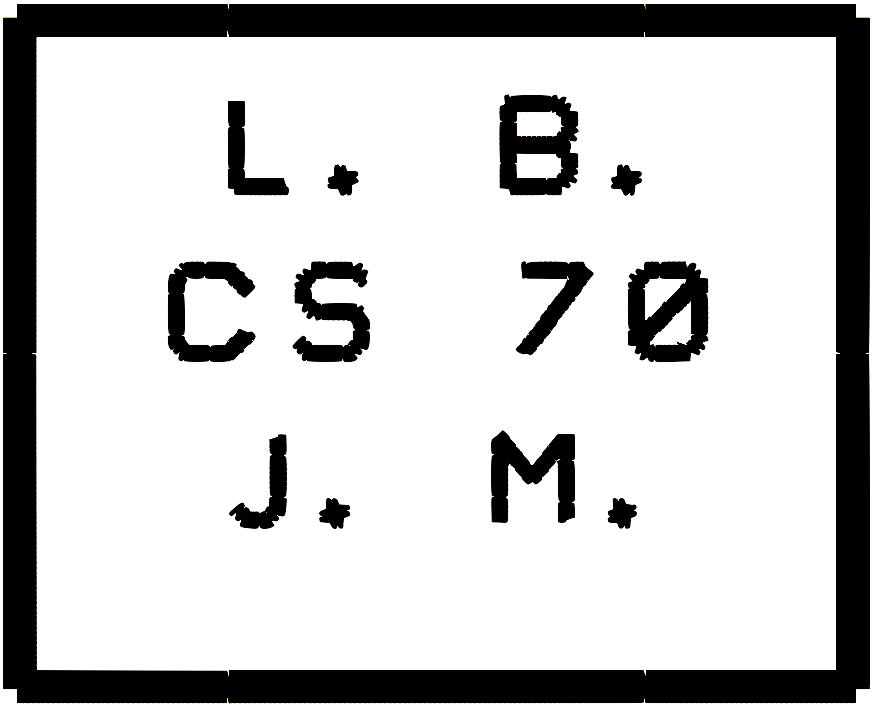
…although the color on your image may be different than ours, as .dst files don’t store color information.
Helpful Hints
Don't Forget!
Every time you change your source files and want to see how it affects your image, you need to
- Recompile all the source files affected by the change.
- Link the object files made by the compiler into an executable.
- Run the executable.
- Convert the image file.
- Reload the image file in whatever you're using to view it.
-
So don't forget! Every time you change
embroidery.cpp, you need to recompile it, relink it, re-run./homework2and regenerate the.svgfile withconvertbefore you can see the results. -
If you fix a bug in the code and the output image doesn’t change, you probably forgot one of these steps.
Pay Attention to Warnings (from clang++ and cpplint)
We recommend that you fix compiler warnings immediately, rather than waiting until the end. Even if most warnings are about issues that don’t cause trouble in practice, sometimes warnings reflect very serious errors in your code, and getting rid of the unimportant warnings makes it easier to spot the important warnings!
Similarly, cpplint is pretty picky about how you write your code, so your life will be easier if you run it from time to time and correct your formatting as you go, rather than waiting until the end to fix dozens (or for larger programs, hundreds) of small annoying errors.
Visual Studio Code Is Sometimes Clueless…
When working on C++ code, sometimes your editor, as VS Code does, will try to “help” you. For this assignment, it may complain to you that it does not find Turtle-related libraries on your system. This is OK, since VS Code does not really know what is on our server. When you compile on the server, the compiler will definitely be able to find them.
(When logged in, completion status appears here.)