Copying Starter Code
This guide walks you step-by-step through the process of copying starter code for lab assignments. You will need to do this for each lab. If you are working with a partner, only one partner needs to follow these steps per lab.
Note: Before the first lab, you should have been invited to the CS 159 GitHub organization. If you click that link you should either be taken straight to the organization's homepage, or be given a prompt to accept the invite if you haven't already. If you are unable to access the GitHub organization, please notify Prof Chang immediately, and let him know your GitHub username, so he can re-send the invite.
- At the start of the lab writeup on this website, there should be a button labeled "Link to starter code". Clicking this button should take you to the GitHub template containing the lab's starter code.
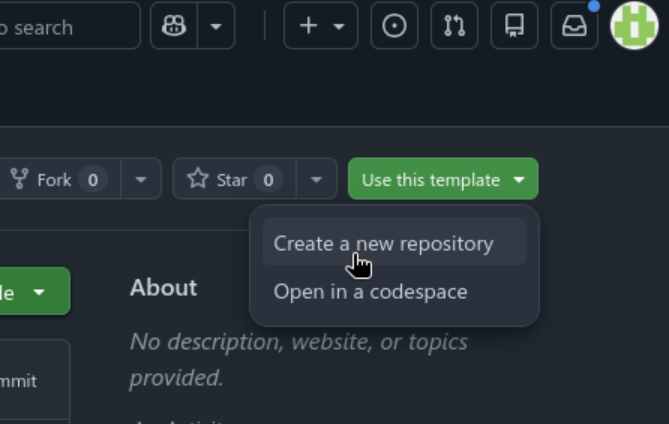
- On the GitHub template page, there should be a button in the top right corner labeled "Use this template". Clicking on the button should open a dropdown menu; from this menu, select the option "Create a new repository" (see image below):
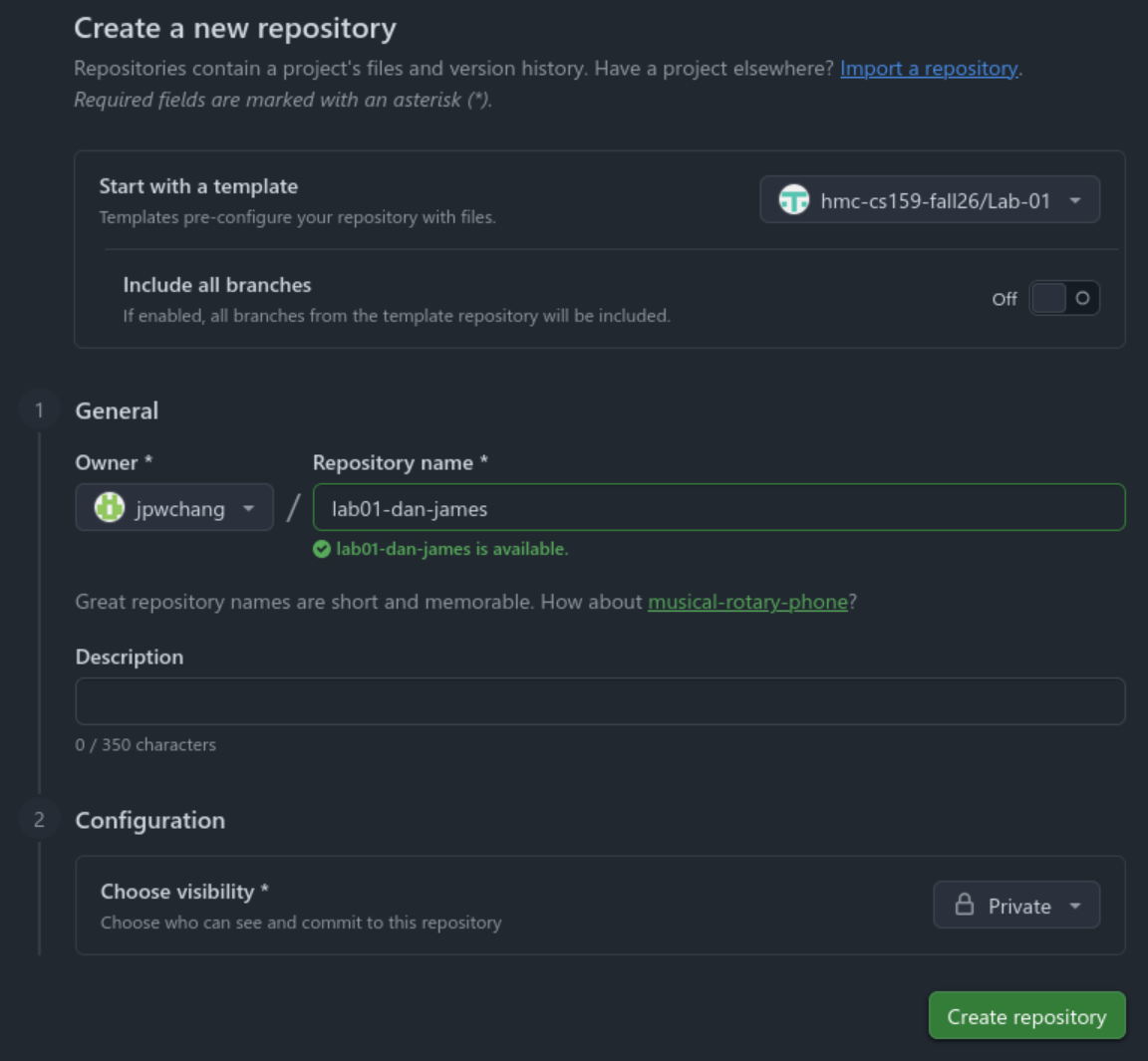
- This will take you to the repository creation page. There are three important things to do on this page. First make sure to enter a name for your repository, which should use the format
lab<number>-<first partner's name>-<second partner's name>, as in the screenshot below. Second, in the ownership dropdown next to the name, make sure to set the owner to hmc-cs159-fall26 (instead of the default which is your personal account). Third, make sure to set the visibility to Private, so your classmates can't see your code!
- Your repository has been created with the starter code and is ready to go! You can now clone it in VS Code, or any other editor of your choice, to start working.
- If you are working with a partner: Since the repository is private, you will need to give your partner access so they can contribute to it. Under the Settings page of your newly created repository on GitHub, click "Collaborators and teams", which should take you to a page like this:
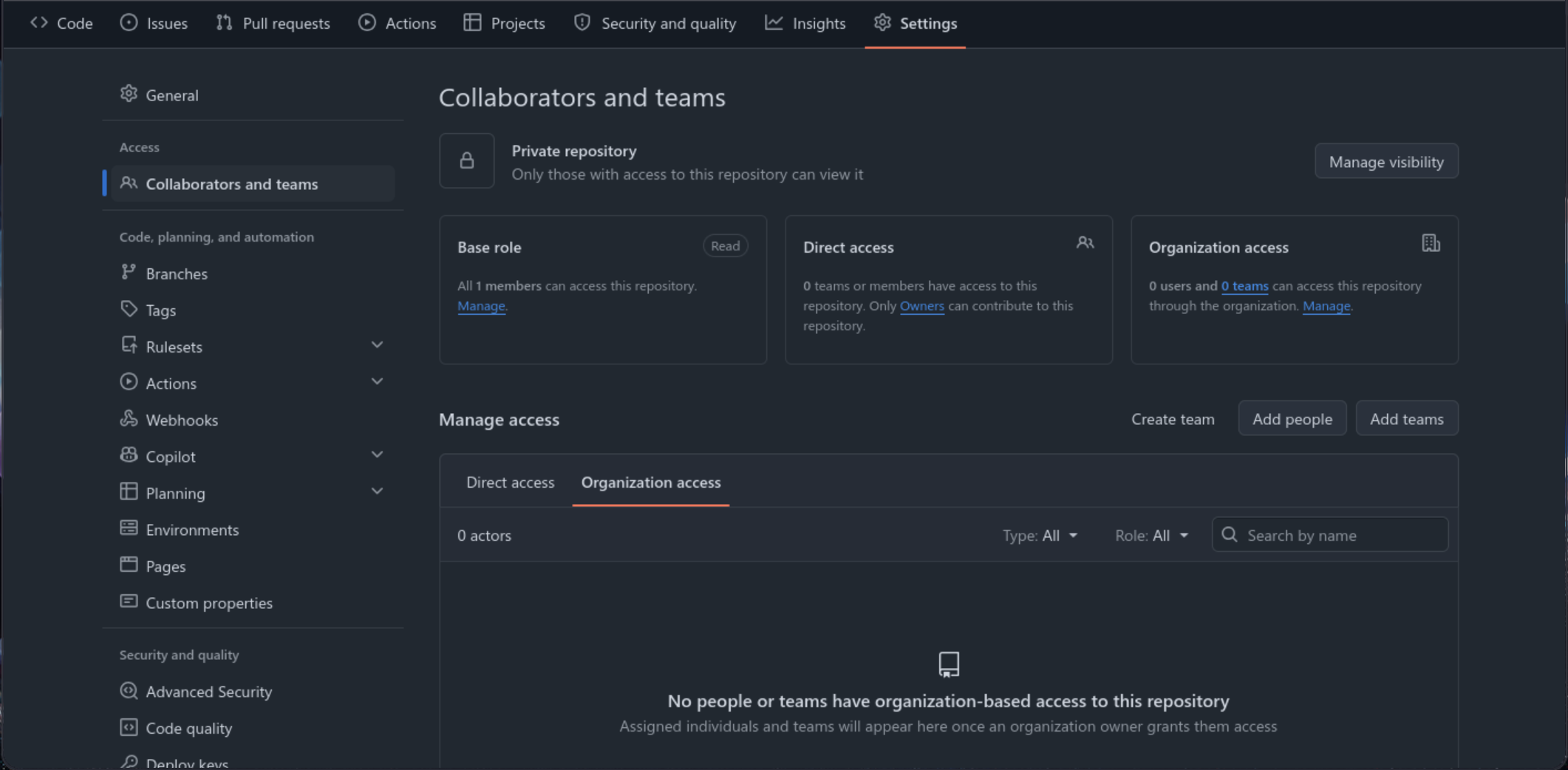
Click "Add people", search for your partner's GitHub username, and select them from the list once you've found them (make sure you're selecting the right person!)
If you need further help, please ask during a lab session, or in office/grutoring hours.
(When logged in, completion status appears here.)